 Daniel Mercer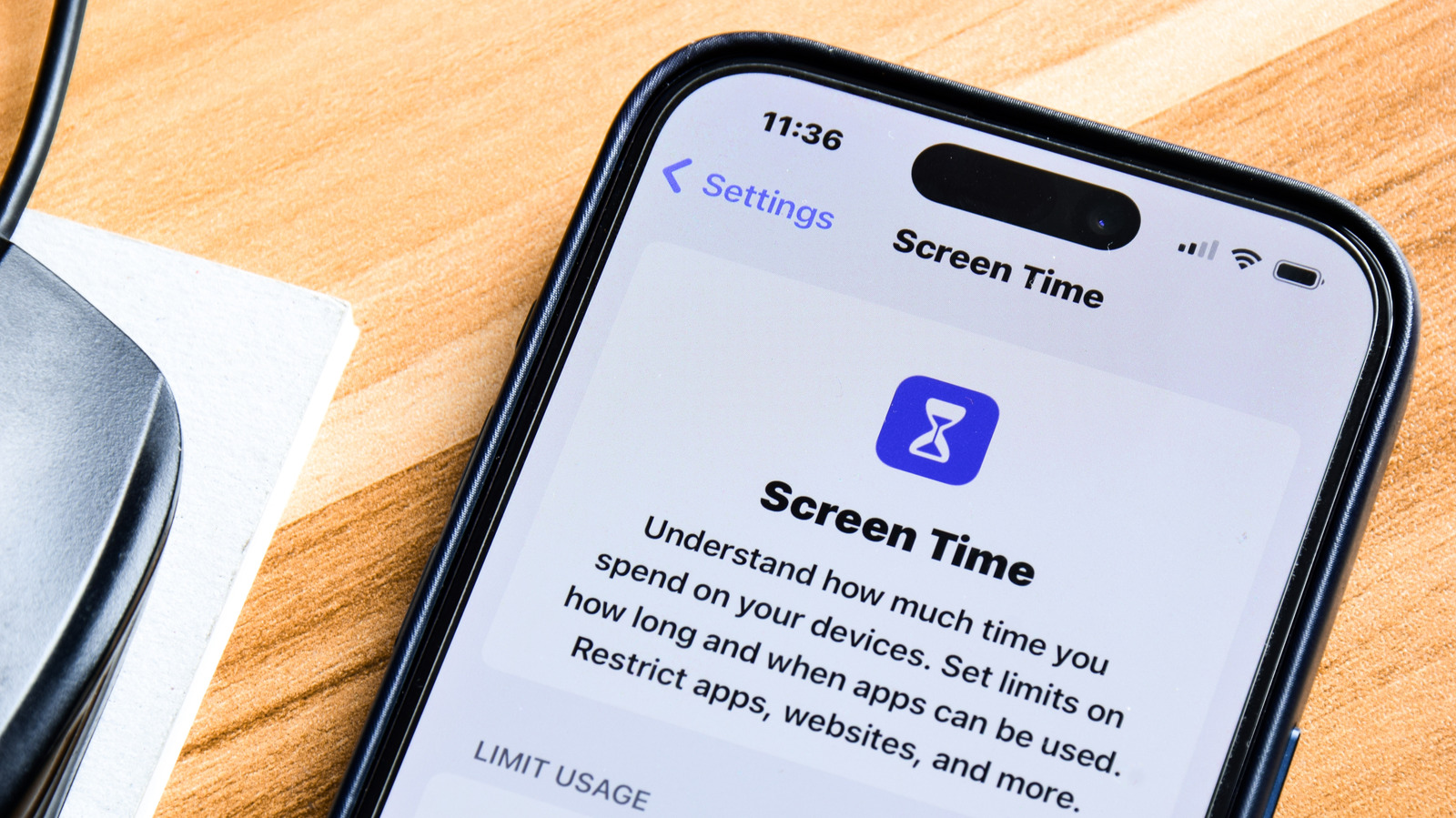

Transform Your Phone Habits with Screen Time and Take Control.
Many people find it surprisingly easy to lose track of time while using their phones. Whether you aim to limit your engagement with a particular app or wish to avoid phone usage altogether during specific times, the Screen Time feature on your iPhone can help you reclaim control over your device usage.
Even if you’re not struggling with your own phone habits, Screen Time provides valuable tools for managing your child’s iPhone or iPad. If you haven’t yet explored this feature, it’s time to become familiar with its capabilities.
How to Monitor Your Screen Time Usage
To start utilizing Screen Time, navigate to Settings > Screen Time on your iPhone or iPad. At the top of the screen, you will see a chart displaying your daily device usage for the week. Tap See All App & Website Activity for a more detailed view. This section reveals your average daily screen time, app categories, the apps that consume the most time, how often you unlock your device, the first apps you use after unlocking, and which apps send the most notifications that draw your attention.
This historical data offers insights into your phone usage patterns, enabling you to make informed decisions in the subsequent menus. If you own multiple Apple devices, select Devices in the top-right corner to focus on a specific device. You can switch between Week and Day views at the top, using the arrows to navigate through time.
Configuring Allowed Apps and Scheduling Breaks

Daisy Daisy/Shutterstock
Before configuring any of Screen Time’s features, determine which apps will remain accessible during restrictions. Select Always Allowed to choose from your list of installed applications. The Contacts dropdown allows you to decide if you want to communicate with any phone number or just a select few.
Downtime is the primary option for limiting your usage. When activated, you can only access the apps you selected previously and receive phone calls from your designated contacts. You can toggle this option manually, or choose Scheduled to set specific activation times for each day. You will receive a notification five minutes before Downtime starts.
App Limits provide another effective way to reduce your phone usage. Click on Add Limit to see your apps categorized, such as Social, Games, and Entertainment. Use the bubbles on the left to apply limits to entire categories, or expand the dropdown menu to select individual apps. If you want to go further, there’s a Websites button for limiting web access.
Next, set the maximum time you wish to spend on the chosen app(s) each day. Similar to Downtime, the Customize Days feature allows you to create different schedules for weekends. When you’re nearing your daily limit, your device will send a reminder. Repeat these steps for other app groups if you want varying time limits.
If you attempt to use an app outside the approved list during Downtime or after exceeding its limit, you will see a screen indicating you have reached your limit. You can choose Ignore Limit for additional usage of one minute, 15 minutes, or to bypass restrictions for the entire day. Consider hiding apps that are particularly addictive to create more distance.
Enable Share Across Devices to synchronize your limits across all your Apple devices linked to your Apple Account. If this option is turned off, you will need to manage each device separately.
Utilizing Screen Time to Supervise Your Child’s Device

Cristalov/Getty Images
While this guide emphasizes reducing your own screen time, it’s essential to recognize that Screen Time also serves as a valuable tool for managing your child’s iPad or iPhone. If you are part of an Apple Family Sharing group, your children’s names will appear at the bottom of the Screen Time page; tap on their name to set up the necessary controls.
Several Screen Time features are particularly beneficial for children. The Screen Distance feature alerts you when your phone is held too close to your face, while Communication Limits allows you to restrict contact to only those in your address book. It’s important to note that these contact limits only apply to Apple’s built-in apps, such as Phone, Messages, and FaceTime, and do not affect third-party messaging services like WhatsApp.
The Communication Safety feature can identify when an explicit image is received or sent, offering guidance on such content. the Content & Privacy Restrictions section provides controls to disable specific features or lock settings to prevent changes. For example, you can disable Apple Wallet, restrict app installations, or lock permissions for sensitive settings like location access.
Your child may request your approval to bypass certain restrictions, such as downloading age-restricted apps or using other applications during Downtime. Even if you do not have an Apple device, you can configure restrictions on your child’s device. Once you have set up the controls, use the Lock Screen Time Settings button to create a specific PIN that prevents your child from changing these settings.
Customize Screen Time Restrictions to Fit Your Needs
Screen Time can adapt to your specific requirements, whether you prefer gentle reminders to limit app usage or strict measures to reduce your overall phone time. If a simple reminder is sufficient for you, keep in mind that without a passcode, it’s easy to bypass the limits.
Setting a Screen Time passcode allows you to completely block apps once their limits are reached. For a stronger approach, consider having a friend set a Screen Time PIN that they only provide in case of emergencies. Alternatively, as suggested in a Stack Exchange discussion, you could have a friend set a PIN that you memorize and store behind a complex password in an inconvenient location. This way, accessing it becomes a challenge, reducing the likelihood of bypassing your limits. Coupled with iPhone Focus modes to minimize incoming notifications, you can effectively manage your phone usage.


 Ethan Carter