 David Bridges

Discover Effective Methods to Terminate Stuck Applications on Windows
If you are transitioning from Mac to Windows, you’re likely familiar with the concept of force quitting applications. When an application becomes unresponsive, force quitting allows you to terminate it swiftly, regardless of its state.
Windows manages applications differently than Mac. Clicking the X icon typically closes the window but may not terminate the process entirely. You can effectively end a process on Windows, a function similar to “force quitting,” albeit with a different terminology. Various methods exist to achieve this based on the application’s responsiveness.
How to Gracefully Close Applications on Windows
The standard method to close most applications on Windows involves clicking the X icon located at the top-right corner of the window. This action sends a close command, allowing the program to save any ongoing work before shutting down. For instance, if you have unsaved changes in a Word document or a download in progress, the application will typically prompt you to confirm the closure, warning you of potential data loss.
Using the keyboard shortcut Alt + F4 achieves the same result as clicking the X icon. While this method is more efficient, use caution as it closes the currently active window, which may not be visually apparent if you are using multiple displays or have several applications open.
Depending on the application, this basic method may either completely terminate the process or minimize it to the system tray—the row of icons on the right side of the taskbar. Applications that are designed to run in the background, such as Discord, Spotify, Slack, or Telegram, typically do not close completely. You will still receive notifications and can use them in the background, but the icons will not be visibly active in your taskbar. In contrast, apps like Word, File Explorer, Notepad, and Paint will close as expected. Some applications offer settings to adjust this behavior, so check the preferences if desired.
If an application doesn’t respond to the standard close command, it often provides an alternative option. Look for File > Quit or File > Exit, which frequently includes a keyboard shortcut like Ctrl + Q. You can also right-click the application’s icon in the system tray (accessible by clicking the small arrow) and select Quit or Close.
If an application freezes completely and fails to respond to these commands, you will need to resort to more forceful measures.
How to Forcefully Terminate Windows Applications
Ben Stegner for Engadget
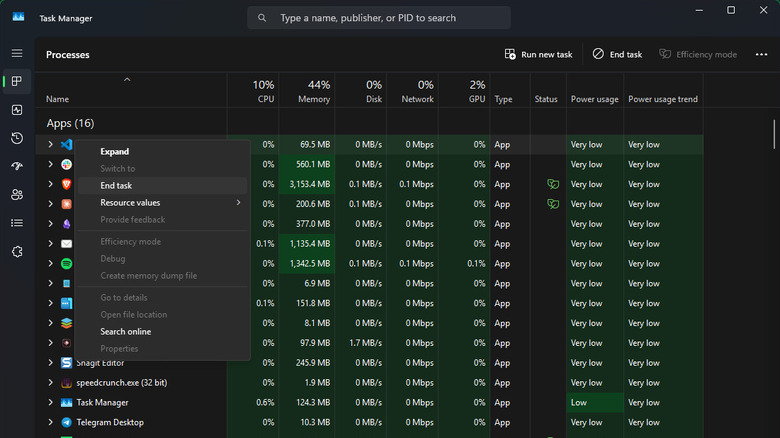
On Windows, the most effective way to force quit an application is through the Task Manager, which also allows you to manage startup applications. To access it, press Ctrl + Shift + Esc or right-click on an empty area of the taskbar and select Task Manager. Navigate to the Processes tab on the left side to view all active processes.
Sorting the entries by name is often the easiest approach. Click Name to arrange them alphabetically, which distinguishes active Apps from Background processes and Windows processes. Alternatively, you can use the search box at the top. For those seeking to close resource-heavy applications, click on a header like Memory to sort by resource consumption. A number beside an app’s name indicates multiple related processes.
To end a process, click on it and select End task in the top-right corner, or right-click on it and choose the same option from the context menu. This action will forcefully terminate the process without providing a chance to save unsaved work. Once the frozen application closes, you can reopen it.
The Windows Explorer entry, found under Windows process, is particularly crucial. Since it controls File Explorer and many visual aspects of Windows, terminating it may lead to issues. it presents an option to Restart task instead of merely ending it. If you close the Explorer process by other means, you can restart it by clicking Run new task in Task Manager and entering “explorer.exe“.
Alternative Techniques for Closing Non-Responsive Applications
Ben Stegner for Engadget
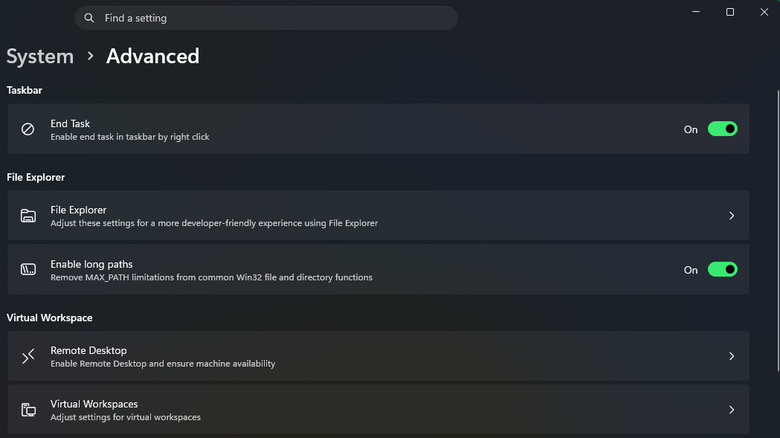
While the Task Manager is useful for occasional process management, there are faster methods to close processes. One of the most efficient techniques is found within the Settings app. Open it by pressing Win + I, then navigate to System > Advanced. Enable the slider next to End Task, and a new option will appear when you right-click an open app on the taskbar.
This feature saves you from accessing the Task Manager; however, be cautious in selecting the appropriate command. End task will terminate the process immediately without a prompt, while Close window sends the standard shutdown request.
If these methods fail to close a frozen application, switch to the Details tab in Task Manager. Locate the unresponsive process, right-click it, and choose End process tree to forcefully close it along with any related processes.
Using command-line prompts to end unresponsive processes is another option, though it can be cumbersome. A more user-friendly approach involves creating a shortcut that kills all frozen applications without needing to identify their process names. To achieve this:
- Right-click on an empty area of your desktop and select New > shortcut.
- In the dialog box, input taskkill /f /fi “status eq not responding”. The /f flag forcefully terminates the process, while /fi restricts the command to processes matching the specified condition (in this instance, those that are unresponsive).
- Click Next, provide a descriptive name for the shortcut, and press Finish.
- If desired, you can assign a custom keyboard shortcut to this command. Right-click the newly created shortcut, select Properties, and enter your preferred shortcut key in the Shortcut field. Change the Run setting to Minimized to avoid opening a window each time you execute it, then click OK.
Lastly, consider using an application like SuperF4, which adds a Ctrl + Alt + F4 shortcut for force-closing the current application, along with a Win + F4 command to terminate any application’s process by clicking its window. This tool and the command line shortcut are particularly useful for managing full-screen applications or situations where Task Manager cannot be accessed.
In situations where all else fails, restarting your PC can resolve any unresponsive applications. Regularly rebooting your system may help prevent future freezes. If a specific application continues to freeze, check for updates, and consider reinstalling it if issues persist.



 Daniel Mercer