 David Bridges

Understanding the Purpose of Each Ethernet Port on Your Router
The Ethernet ports located on your router may appear to be interchangeable at first glance. While this is true for some models, others are designed with a variety of ports that serve different functions and speeds. One port typically connects the router to your modem or fiber terminal, while the remaining ports facilitate wired connections for devices like PCs, gaming consoles, and smart TVs within your home.
To determine the appropriate port for your needs, begin by identifying the device you are connecting and then consider the maximum communication speed of both devices involved. Start by distinguishing between the WAN and LAN ports, and then evaluate speed requirements.
Identify the WAN or Internet Port First
Bohdan Bevz/Getty Images
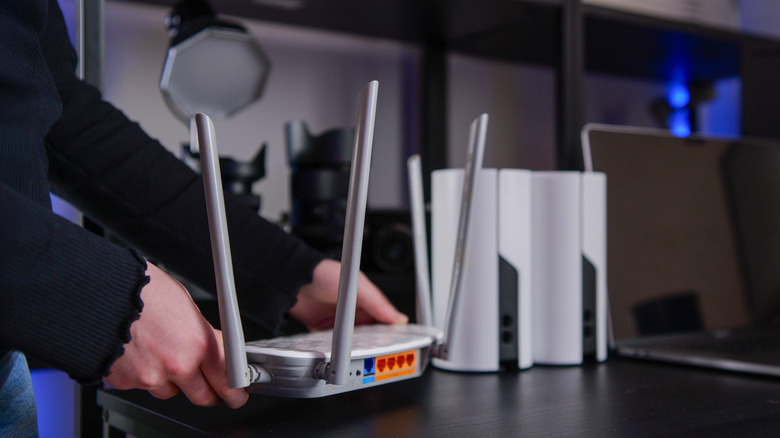
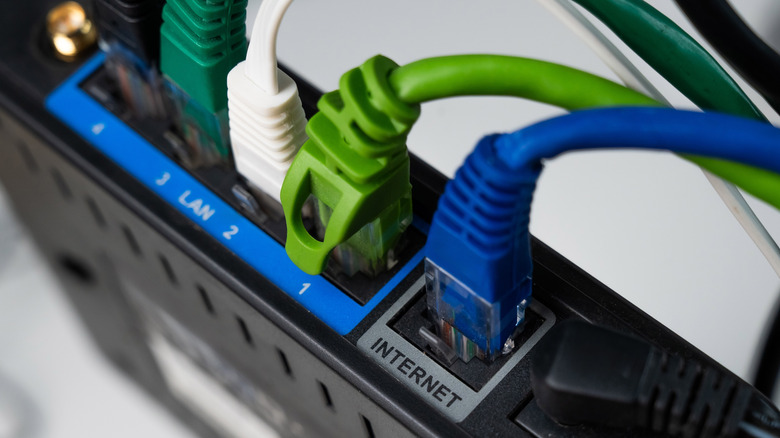
When your router connects to a separate modem or optical network terminal (ONT), the Ethernet cable from that device typically plugs into the router’s WAN or Internet port. WAN, or wide area network, refers to the router’s link to your internet service provider. In cases where you have a router/modem combo, this connection is not necessary since one device handles both tasks.
The remaining Ethernet ports are usually designated as LAN (local area network) ports. These are used to connect various devices within your home, such as desktop computers, gaming consoles, smart TVs, and network-attached storage (NAS) devices. Even if a router features four LAN ports, it does not provide four distinct internet connections; instead, it allows up to four wired devices to connect directly without relying on wireless options.
Not all routers follow this exact configuration. Some may have ports labeled as WAN/LAN, which can perform either function, while other models may utilize auto-sensing Ethernet ports that do not have a dedicated WAN port. If your router does not clearly indicate a port for an Internet or WAN connection, consult its setup guide or specifications for guidance.
The number of LAN ports you require depends on the number of devices you intend to connect directly to the router. If you run out of ports, an Ethernet switch can be employed to add additional connections without the need for a second router. Similar to an HDMI switch, these devices connect to one of your router’s LAN ports and offer extra ports for other devices. You may be surprised by how many wired connections you need, especially when considering efficient ways to use Ethernet without running extensive cables throughout your home.
Understanding Speed Variations Among LAN Ports
Pixel-Shot/Shutterstock
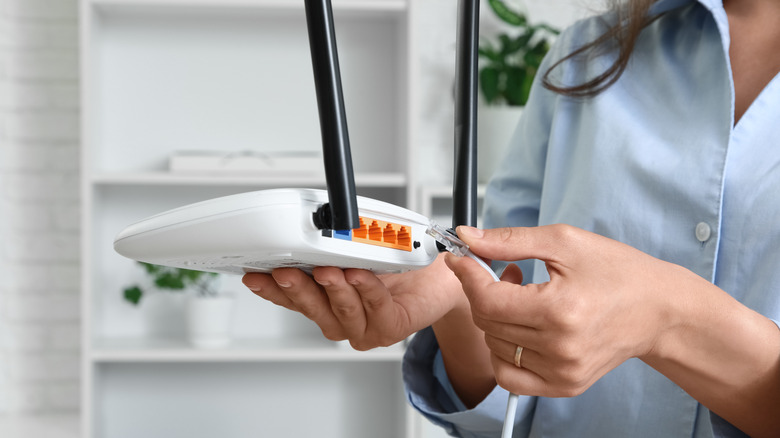
Once you move to the LAN side of your router, speed becomes a critical consideration. Some routers offer identical LAN ports, while others, such as the Netgear Orbi 870, incorporate a mix of gigabit and multi-gigabit ports.
Terms like 1G, 2.5G, 5G, and 10G signify maximum link speeds of 1Gbps, 2.5Gbps, 5Gbps, and 10Gbps, respectively. In some cases, the manual or specification sheet may use Ethernet standard names like 1000BASE-T for 1Gbps, 2.5GBASE-T for 2.5Gbps, and 10GBASE-T for 10Gbps.
For instance, the TP-Link Archer BE900 highlights the importance of verifying port specifications. It features four 2.5Gbps LAN ports alongside 10Gbps connections that can function for either WAN or LAN purposes. There is no universal rule indicating that port 1 is faster than port 4 based solely on its position or number.
If all LAN ports on your router support identical speeds and lack specialized functions, switching a device to a different port typically will not enhance the connection speed. The significance of port selection increases when ports have distinct speed ratings or specific roles.
Why a Faster Ethernet Port Doesn’t Speed Up a Slower Device
Reshetnikov_art/Shutterstock
A router port rated for 10Gbps does not automatically provide every device connected to it with a 10Gbps speed. The entire Ethernet setup, including adapters and cables, must also support this increased speed.
If your computer is equipped with a 1Gbps Ethernet adapter, plugging it into a faster multi-gigabit router port will not enhance its capabilities. Ethernet hardware typically uses auto-negotiation to establish a link configuration that both ends can support. This means that a 1Gbps device cannot simply become 2.5Gbps-compatible by connecting to a faster port on the router.
The opposite is also true. When you connect a computer with a 2.5Gbps Ethernet adapter to a 1Gbps LAN port, the slower port becomes the limiting factor for speed. To achieve a faster link, all components must support the higher standard, including the router port, the Ethernet interface on the device, and the connecting cable.
It’s important to note that cable specifications can lead to confusion. Categories such as Cat5e, Cat6, and Cat6A refer to cable types, not router speeds. there is no option to select a “Cat6 port” on the router. The quality and length of the cable, along with its installation, can significantly impact the Ethernet speeds that your setup can reliably achieve.
Your internet plan may not be the sole limitation on your Ethernet activities. Devices communicating over a local area network (LAN) do not need to route their traffic through your internet connection. For instance, a PC and network-attached storage device connected via 2.5Gbps Ethernet can transfer files over the local network at speeds much faster than your internet connection likely permits.
Before connecting a device to your router, examine the port’s label, the device’s speed capabilities, and the type of Ethernet cable being used. If all LAN ports on your router are identical in capability, the choice of port generally does not matter. if the ports differ in speed or function, opt for the fastest compatible port to maximize bandwidth where it matters. Always refer to the router’s manual for any specific manufacturer instructions.


 Daniel Mercer