 Daniel Mercer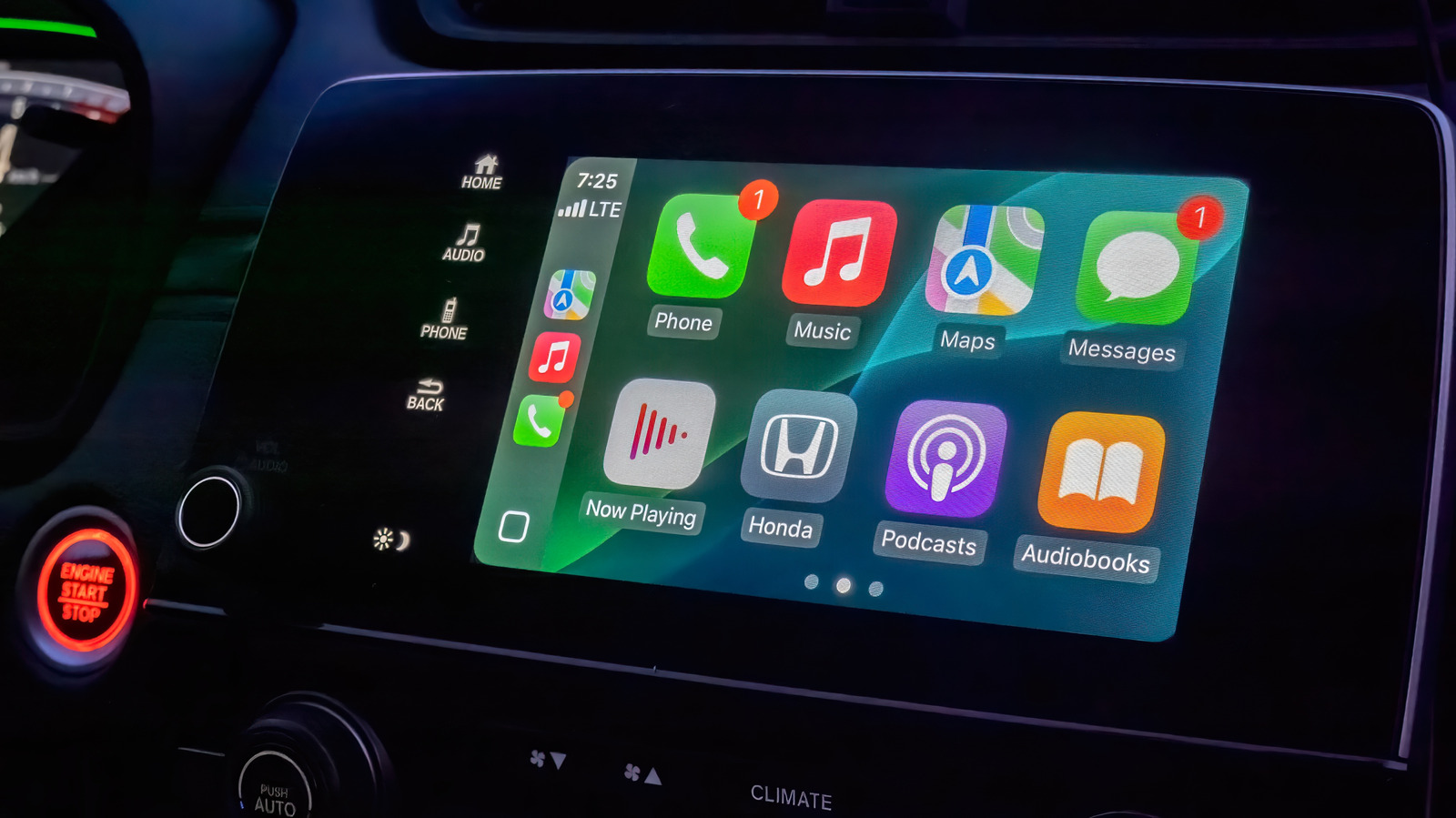

Enhance Your Apple CarPlay Experience with Personalization Tweaks
If your vehicle is compatible, one of the most beneficial upgrades you can implement for a smoother driving experience is connecting Apple CarPlay, either via cable or wireless. This eliminates the hassle of using a phone mount. Your preferred navigation app and essential media controls appear directly on your car’s infotainment display. With the significant improvements made to Siri in iOS 27, you can now interact with your device hands-free, allowing for a more reliable experience while driving.
The CarPlay interface features bold text and large icons, ensuring information is easily readable and touchable. While the default setup is effective, making a few adjustments can prioritize the most crucial items and enhance your overall experience.
By default, CarPlay operates in dark mode to prevent the infotainment screen from being overly bright in low-light settings. If you find this setting makes it harder to read during the day, you can switch to light mode. To do this, go to Settings > Appearance within CarPlay using the touchscreen or your vehicle’s controls. Here, select Automatic to enable CarPlay to toggle between light and dark modes based on the surrounding light conditions.
The Settings app in CarPlay (Settings > Wallpaper) allows you to customize the background behind your apps. While you cannot upload a personal image from your phone’s gallery, there are several Apple-designed wallpapers available in various colors and patterns for you to select.
Visit Settings > Customize Icons to choose between a dark icon pack or clear icons that embody Apple’s Liquid Glass design philosophy. Within the Accessibility submenu, you have the option to adjust the text size for improved readability.
How Can You Rearrange Apps and Utilize Widgets in CarPlay?
Adnan Ahmed for Engadget
A highly effective method to customize your CarPlay display is by rearranging the apps on your home screen. Unlike other adjustments, this particular customization is performed through your iPhone. Start by navigating to Settings > General > CarPlay, select your vehicle, and then tap Apps.
To prioritize your most frequently used CarPlay apps, reorder the list using the handles. Keep in mind that the size of your car’s display dictates how many apps are visible per page, so adjust your list accordingly. If there are apps you seldom use, tap the Remove icon next to them; however, some default apps cannot be removed, so consider moving them to the bottom of the list if you prefer not to see them.
After a long wait, Apple finally introduced widget support on the iPhone home screen and eventually brought widgets to CarPlay with iOS 26. These widgets are accessible on a separate page, which you can reach by swiping right from the main dashboard.
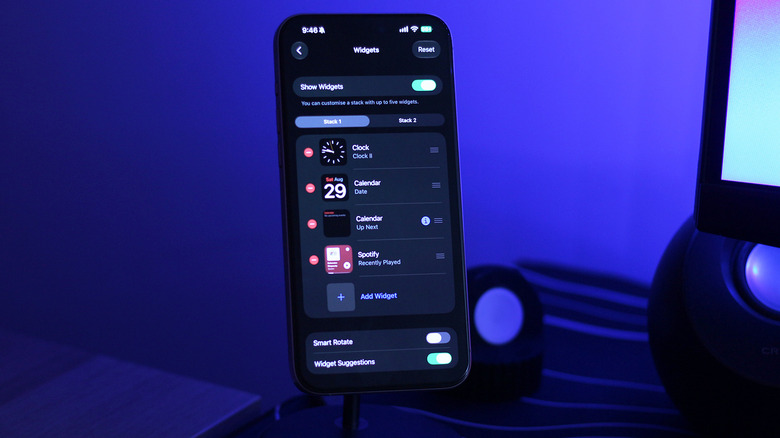
Depending on the width of your car’s infotainment screen, you will see one or more stacks of widgets at a time. Initially, CarPlay displays widgets that it determines might be useful, such as the clock, calendar, media player, and weather. To optimize the display of this space, customizing which widgets appear in each stack is essential. You don’t want to be rushed while trying to locate a specific widget while on the road.
To customize these settings, return to the CarPlay settings page on your iPhone. Tap Widgets and ensure the Show Widgets toggle is activated. You can add new widgets to each stack or rearrange their order to keep the most important ones easily accessible. The widgets available will depend on the apps you have installed.