 Daniel Mercer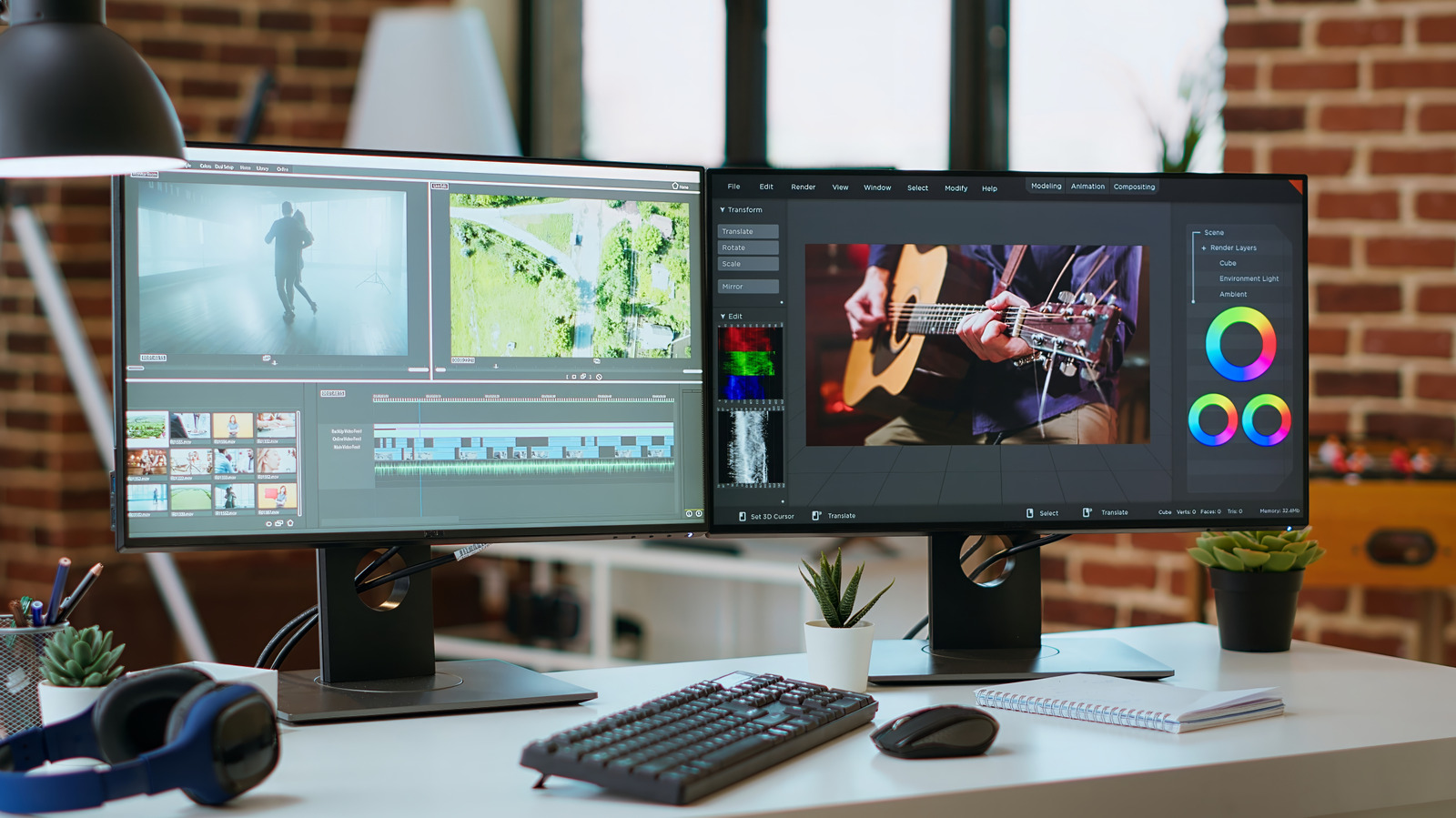

Utilizing two screens enhances your workspace, allowing you to run applications simultaneously without constant tab-switching.
Transitioning to a dual-monitor setup is one of the most impactful improvements you can make to your workflow. Studies suggest that this arrangement significantly enhances productivity and job satisfaction. Whether you are multitasking, engaging with split-screen views, gaming, or handling daily office responsibilities, the advantages of dual screens are substantial.
While it may seem that dual monitors primarily serve gamers or professionals in fields like music, video production, or accounting, this assumption is misleading. For instance, a close friend of mine works in the insurance industry and leverages her dual-monitor setup to seamlessly copy and paste data between documents without the hassle of switching tabs. she can maintain her Teams chat on one screen while focusing on her tasks on the other, commenting that “Dragging and dropping documents is incredibly effortless.” The takeaway is clear: the benefits of dual monitors extend to anyone who frequently multitasks.
Discover the Usability Benefits of a Dual Monitor Setup

Andreypopov/Getty Images
The primary advantage of using two monitors is the ability to distribute your work across several screens. My go-to application on my MacBook allows for split-screen functionality, enabling me to write on one half while conducting online research or reviewing PDF documents on the other. The advantage of utilizing two full-sized monitors, rather than a cramped half-screen with tiny text, is immediately apparent. Creative professionals and data analysts can significantly expand their visual workspace, allowing for greater visibility. For professions like trading and programming, using three or four monitors can be beneficial, but for the average user, two monitors often provide the perfect balance.
This setup is particularly effective for multitasking. I frequently have numerous tabs open in my browser and use two separate web browsers for different tasks. This allows me to work on one task, like updating my resume, while simultaneously searching for job postings on another screen. A second monitor can also serve as a dedicated space for communication applications or any static information you want visible, such as your email inbox.
To text-heavy tasks like word processing and spreadsheets, dual monitors are a game changer for gamers. You can engage in gameplay on one screen while using the second to manage game recordings, chat with your streaming audience, access Discord, and more, all without interrupting your gaming experience. During video calls, it’s easy to take notes on one display while keeping your team in view on the other. If you’re creating a how-to video, you could have your script open on one screen while executing the steps on the second.
Effective Strategies for Organizing Your Dual Monitor Setup

Zamrznuti tonovi/Shutterstock
Implementing a second monitor significantly enhances your organizational capabilities, both on your desk and across your screens. I often print reference materials to consult them separately, but with a second monitor, I can eliminate this step, reducing paper waste and clutter. relying on a mobile device as a secondary screen can lead to distractions, which a dedicated monitor can help avoid.
You don’t always need a high-end second monitor. Specifications like high refresh rates matter more for the primary display you use most frequently. A budget-friendly monitor is sufficient for secondary use. Ideally, select a second monitor that matches the size of your primary display for visual consistency. Ensuring that the pixel density is the same will help maintain uniform text and image scaling. consider investing in mounting hardware to align both monitors at the same height.
Pay attention to your sitting distance from the monitor and the ideal eye level to set everything up properly. Connecting both monitors to your computer requires two video outputs and the right cables, so ensure you have those ready. Adjust display settings, such as brightness and contrast, to create a comfortable viewing experience.
If you’re working with a laptop, you may need to configure it to remain operational when you close the lid, especially if it isn’t being used as one of your displays. For example, most modern MacBooks can support at least two external monitors.
Even if a second monitor isn’t something you use constantly, its presence can be transformative, as my friend described it as a “complete game-changer.” Having the ability to view one application while working in another prevents the frequent need to toggle between windows and helps you keep track of your most important tasks.



 David Bridges