David Bridges

When scrolling through the Facebook Feed, sometimes, Facebook automatically logs you out. This issue usually occurs due to an in-app error or due to other external factors.
While updating, the Facebook app might fix the bug — if there is some other factors affecting it, you need to correctly address and resolve this problem. But before retyping your credentials, check if you are being hacked or if someone is phishing on your network.
But, if the login page is legitimate and the app itself is causing the problem, then we have listed all the troubleshooting methods below to solve the issue.
Why My Facebook Keeps Logging Me Out?
There are several reasons why your Facebook keeps logging you out. The following are a few of the factors that might be contributing to this issue.
- Outdated Facebook app
- Corrupted cache and cookies data
- Third-party apps and websites
- Problematic browser extensions
- Multiple logged-in devices
- Using VPN (Virtual Private Network)
- In-app bugs
- Facebook Server Outage
How to Fix Facebook Keeps Logging Me Out?
Facebook login issues can occur in any operating system, like Android, iOS, or any web browser. You can quickly fix this problem by addressing all the causes mentioned above. Before moving on to the fixes mentioned below, make sure to restart your device at the very first.
Update Your Facebook App
One of the most common reasons why your Facebook keeps logging out is because your app is not being updated. If you update your app, then this problem will resolve.
Follow these steps to update the Facebook app.
- Launch your Play Store (Android) or App Store (iPhone).
- Search Facebook.
- Tap on the Update option on the right side of Facebook.
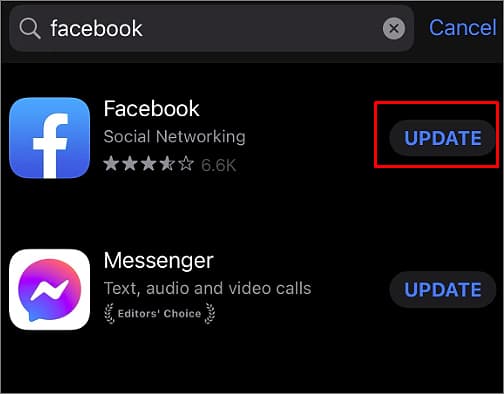
Note: If you see the Open option instead of Update, your Facebook app is up to date.
Clear Cache and Data
The cache is the copy of data or files in the temporary storage, which gets stored in large amounts on your device with the constant updates in the Facebook app. Deleting the corrupted cache data might allow your Facebook app to function smoothly and solve the issue of it logging out.
On Android
- Launch your Settings
- Tap on the Apps
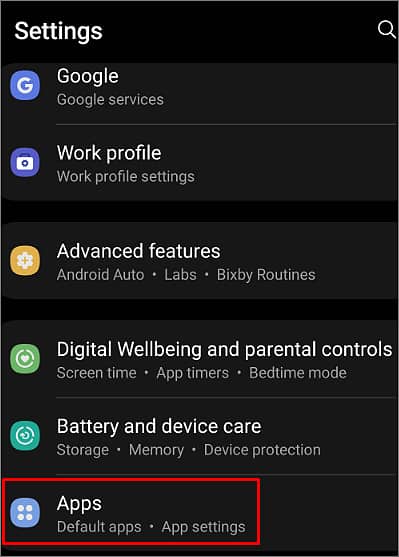
- Scroll down and press on the Facebook app.
- Press on the Storage option.
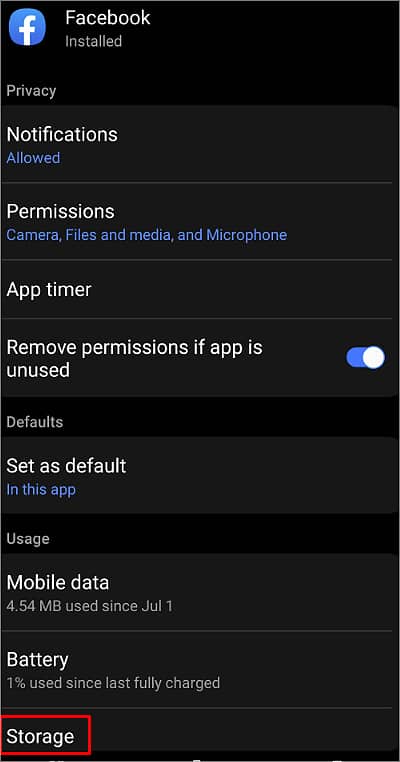
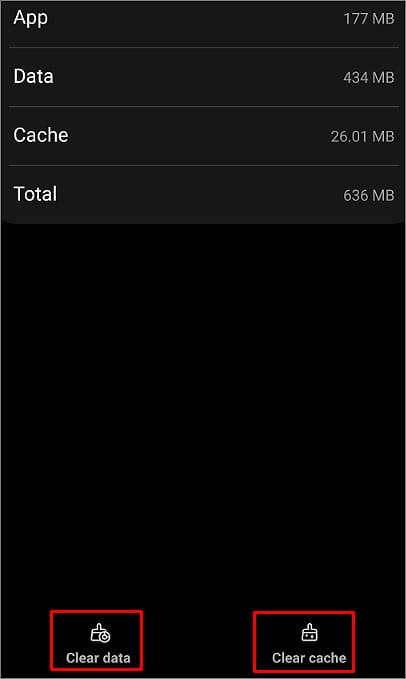
- Tap on the Clear Cache option to clear the Cache and Clear data option to clear data.
On iPhone
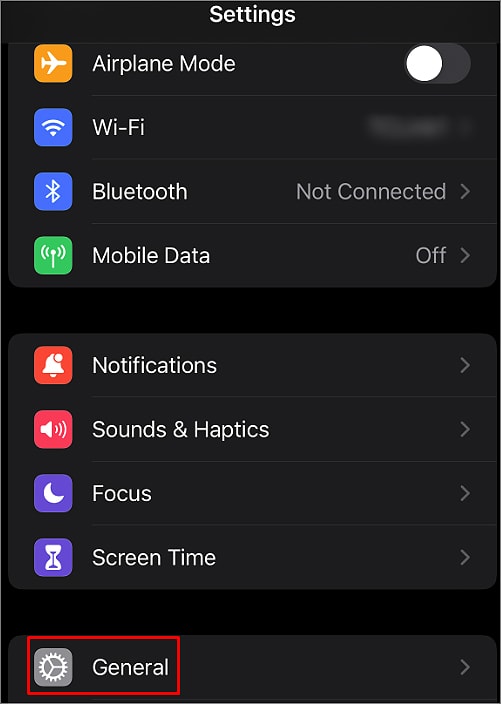
To clear the cache on the iPhone, you need to Offload your Facebook app. Offloading does not delete the app from the phone, as the documents and data remain. However, the cache data gets deleted.
- Open the Settings app
- Select the General option.
- Tap on iPhone Storage
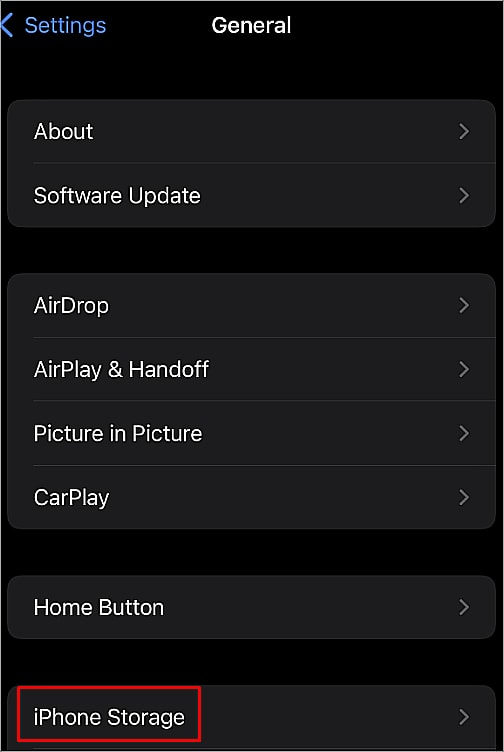
- Select the Facebook app.
- Tap on the Offload App option.
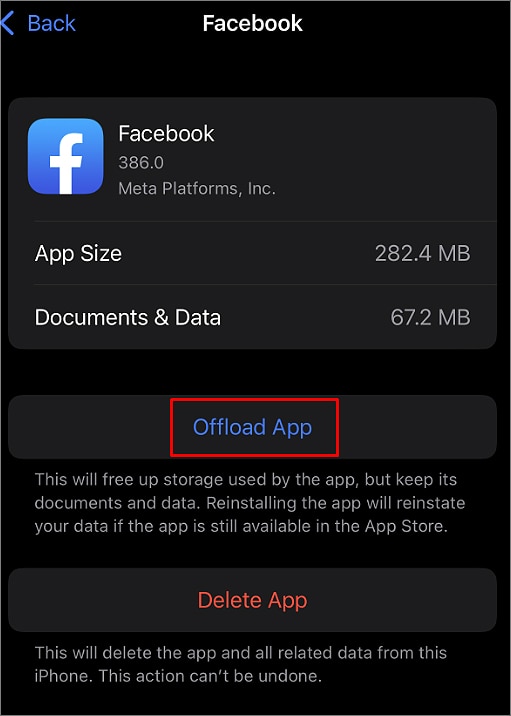
- Again, reinstall your Facebook app.
On Chrome Browser
- Open your Chrome Browser.
- Click on the three dots menu at the top right corner of your screen.
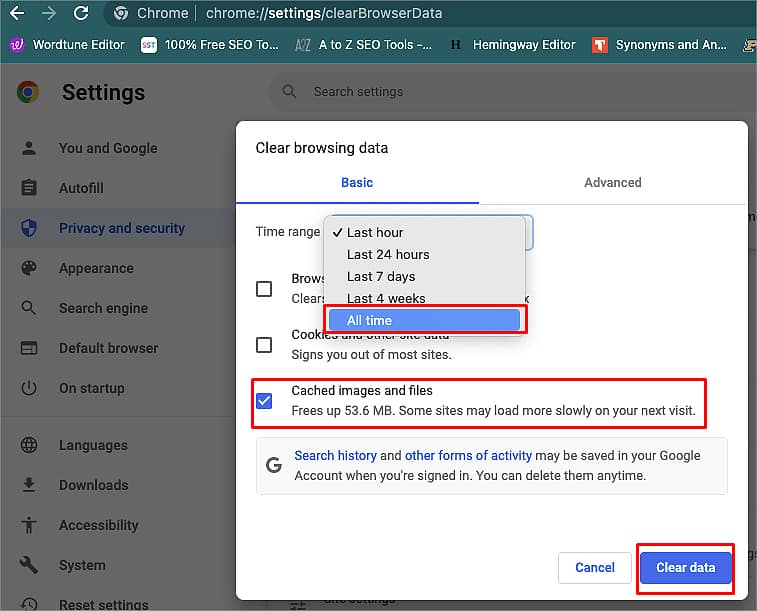
- Put your cursor to More tools and click on the Clear browsing data.
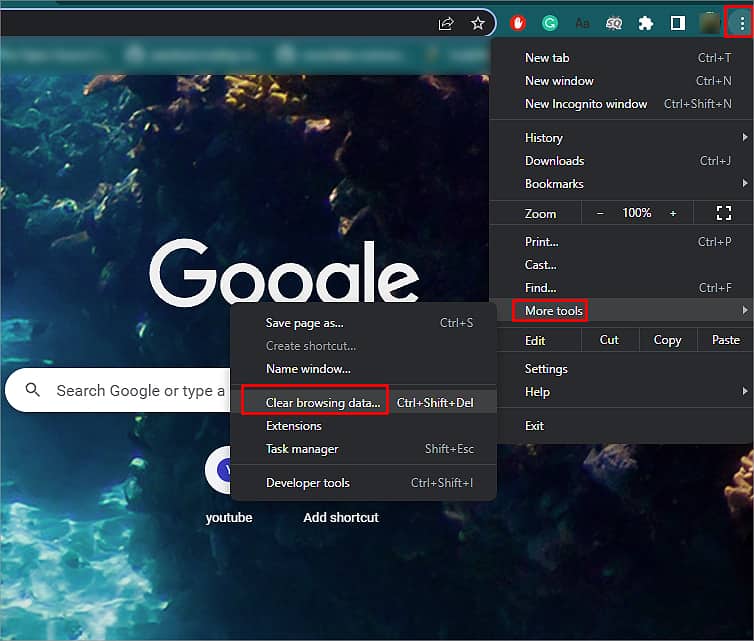
- Click on the Time range and select All time.
- Tick on the Cached images and files
- Select the Clear Data option
On Safari Browser
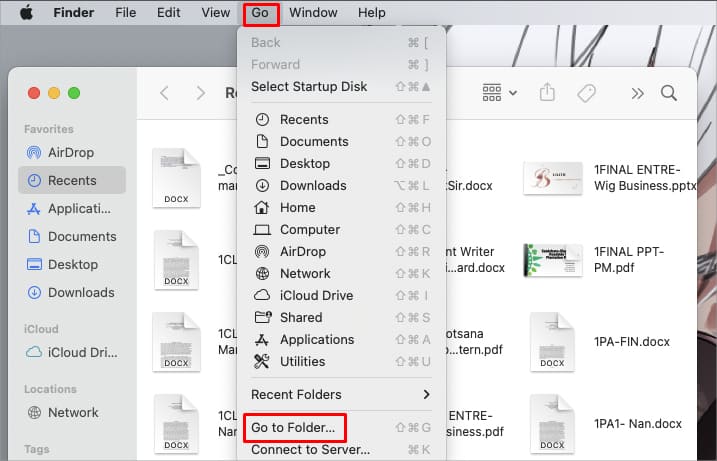
- Open Finder and select Go at the top of your mac screen
- Select Go to Folder.
- Type in
~/Library/Caches/Safariand press Enter.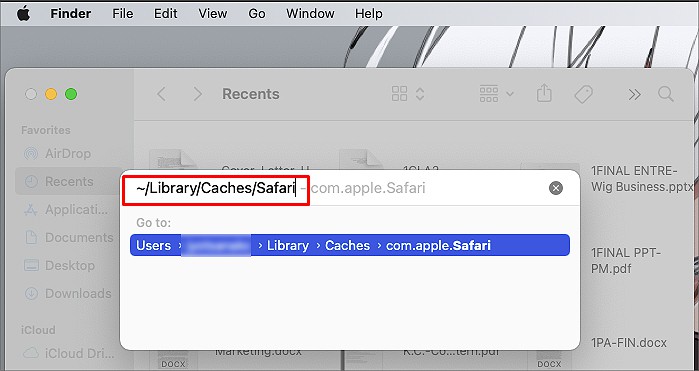
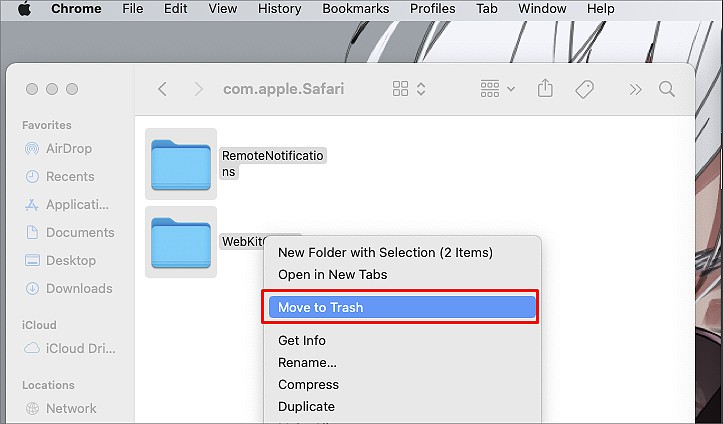
- Now select all the cache files, Right-click on your mouse, and select the Move to Trash option
Clear Cookies and Site Data (Browser)
Some sites track your activity through cookies when you are accessing Facebook from your browser. Sometimes these cookies can interrupt the smooth function of Facebook and cause logging issues.
You can delete these cookies and site data to resolve the issue.
On Google Chrome
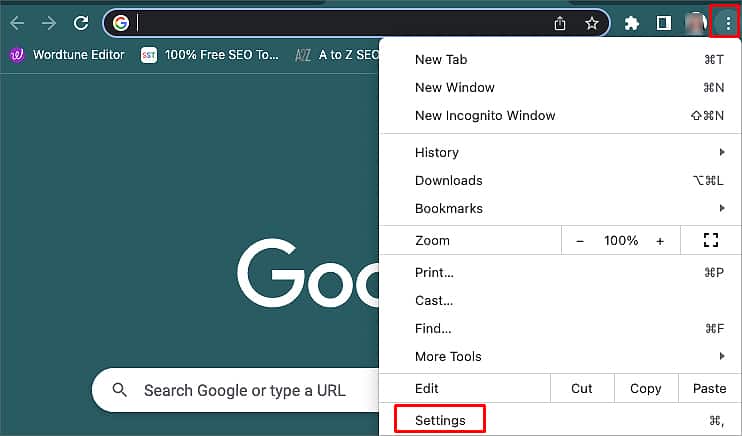
- Open your Browser and click on the Three dots icon
- Click on the Settings
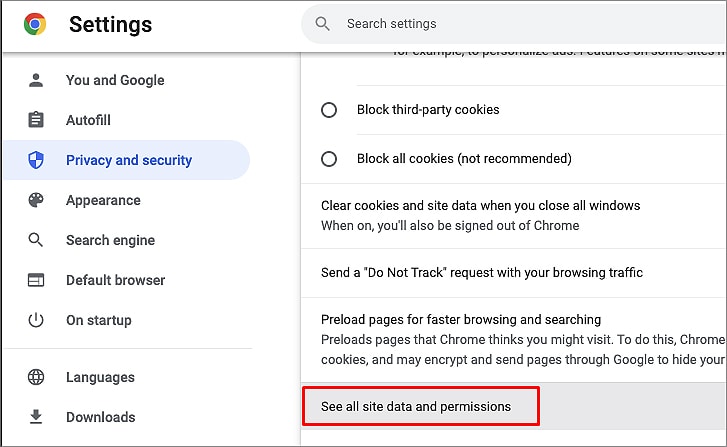
- Click on the Privacy and security
- Tap on the Cookies and other site data

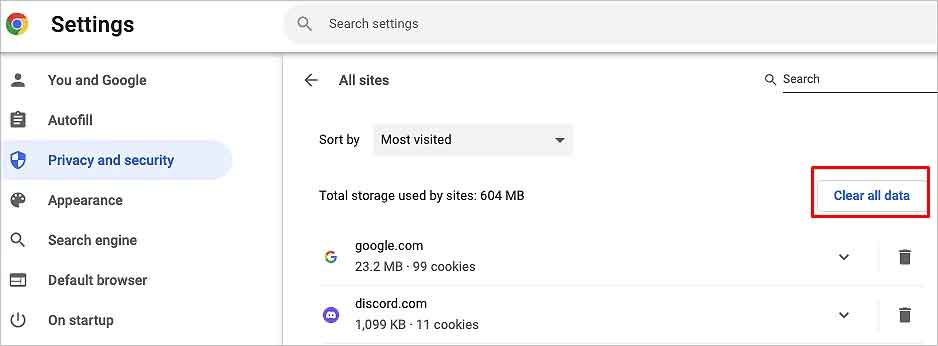
- Select See all site data and permissions option
- Click on the Clear all data option
On Safari
- Open your Safari browser
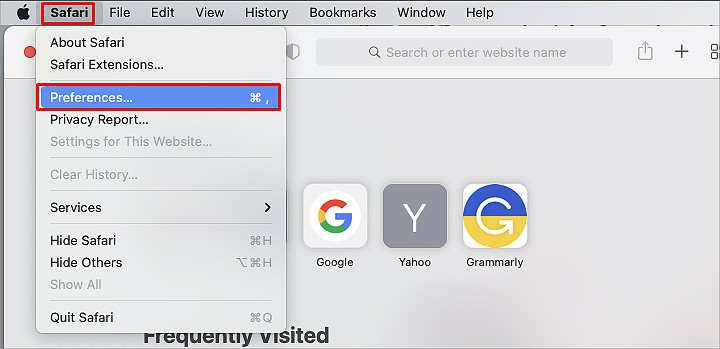
- Click on the Safari menu at the top of your mac screen
- Press on the Preferences
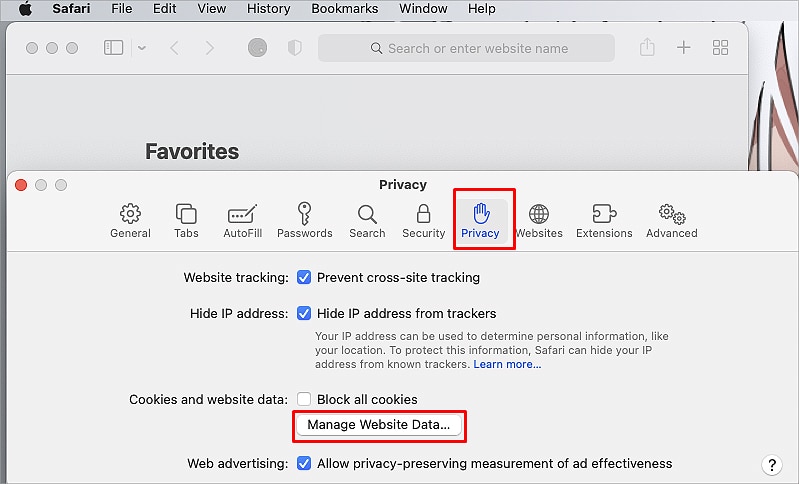
- Click on the Privacy option
- Click on the Manage Website Data
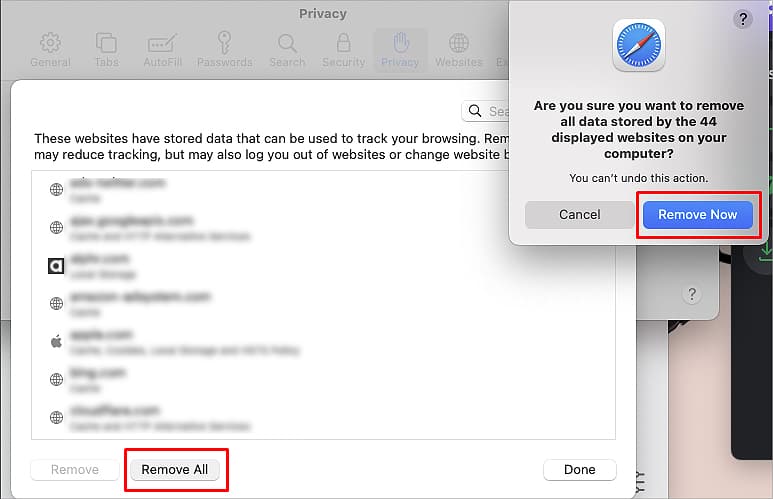
- Tap on the Remove all option
- Press the Remove now option on the confirmation box.
Disable and Remove Third-Party Apps and Websites
Sometimes your Facebook could be connected with many third-party apps or websites. These apps and websites can interfere with your Facebook account and cause logging issues.
You can either turn off or remove the apps and website individually to resolve this.
- Tap on the profile icon at the top right (Android/Browser) or bottom right (iPhone) corner of your screen.
- Click on the Settings and privacy
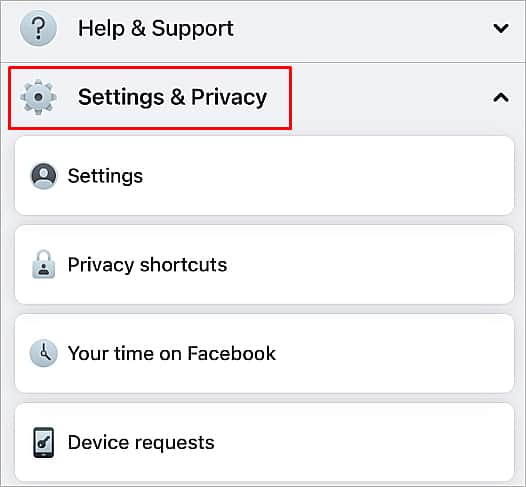
- Click on Settings option
- On Browser, Click on Security and logins
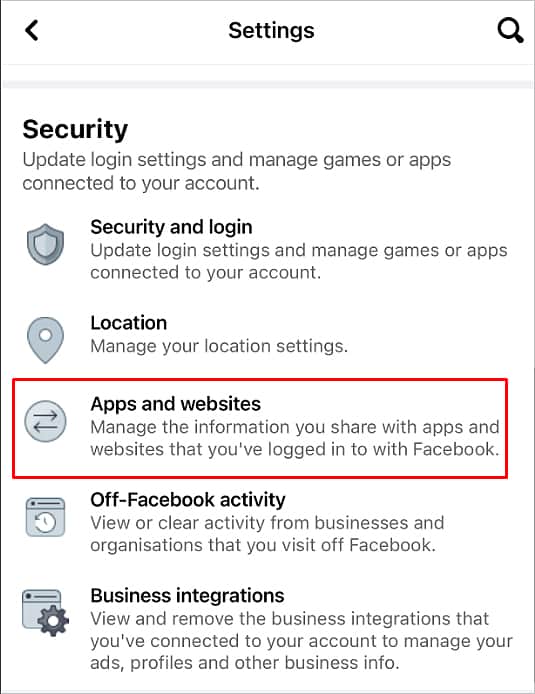
On Android/iPhone, go to the Security section - Under the Security section, press on Apps and websites
To remove third-party access, follow these steps:
- Click on the apps and press Remove option, and Press Remove again on confirmation.
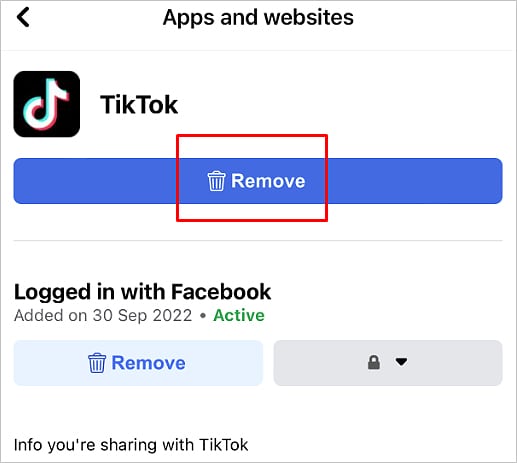
Follow these steps to disable the third-party access:
- Scroll down to the Preferences option
- Click on the Turn off option, beside Apps, websites and games.
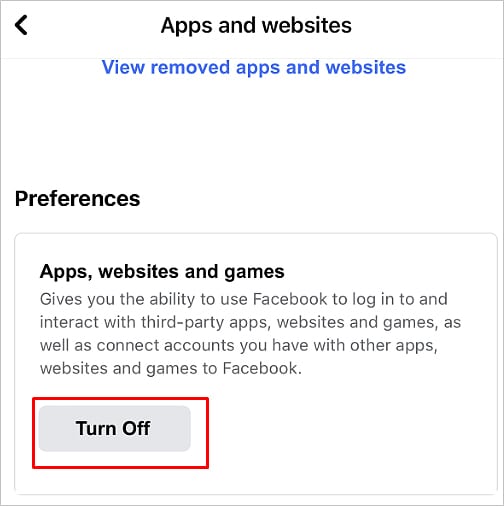
- Click Turn off on the confirmation box.
Disabling / Removing Third-Party Extensions
Using third-party extensions simplifies our browsing experience. However, some extensions may interrupt the Facebook logging process and cause issues.
You can check whether the extensions are the real cause of the logging out error on Facebook or not. You can do this by logging in to your Facebook account using incognito mode on your browser.
If you still experience the logging out issue, this means the extensions are likely responsible for the error. So, disabling the extensions might help you solve the problem.
On Google Chrome
- Go to your Chrome Browser
- Click on the Three dots menu at the top right corner of your screen
- Click on Settings
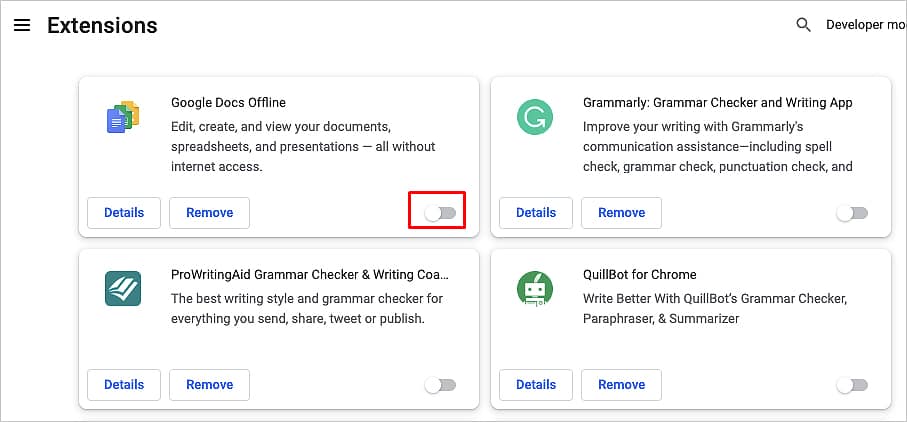
- Press on the Extensions option
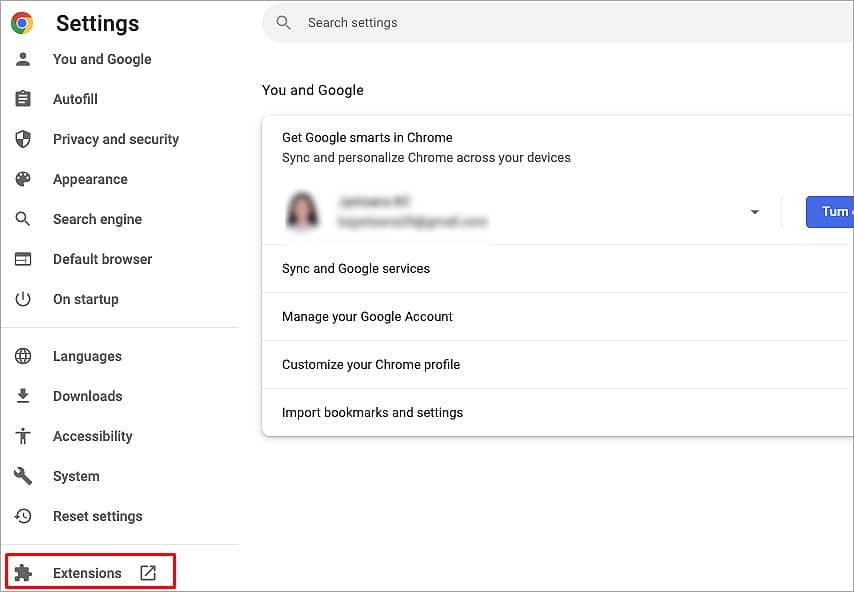
Follow these steps to Remove the Extensions:
- Click on the Remove option
- Select the Remove option on the confirmation box.
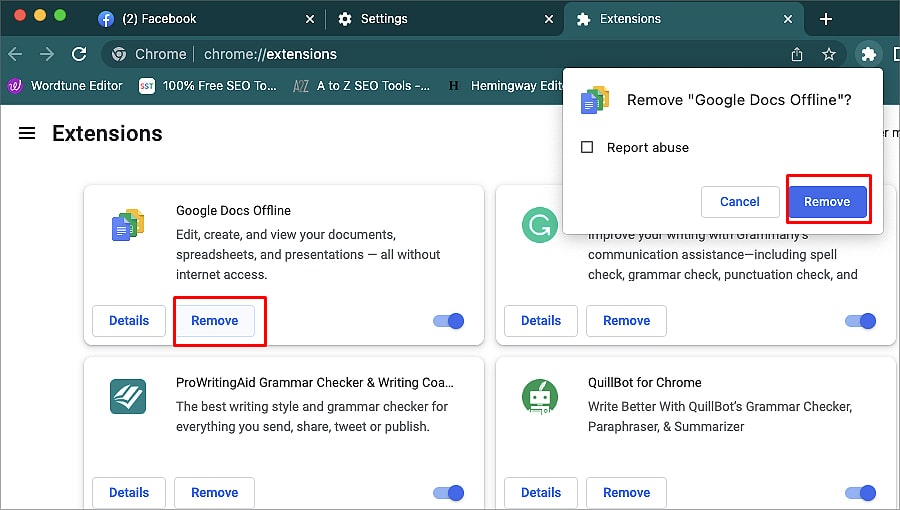
Also to disable Extensions, follow these steps:
- Toggle off the extensions.
On Safari
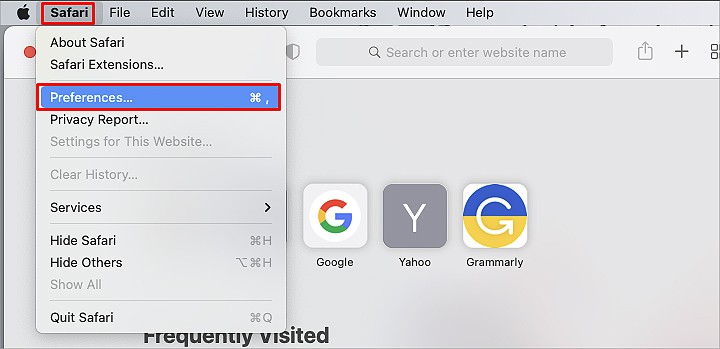
- Launch your Safari app
- Click on the Safari menu at the top of your mac screen
- Click on the Preferences option
- Select the Extensions section
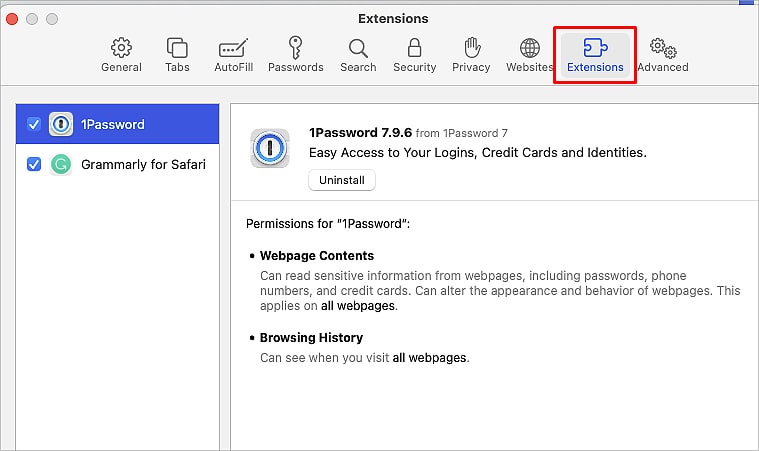
To Remove the Extensions,
- Select the Extension and click Uninstall option.
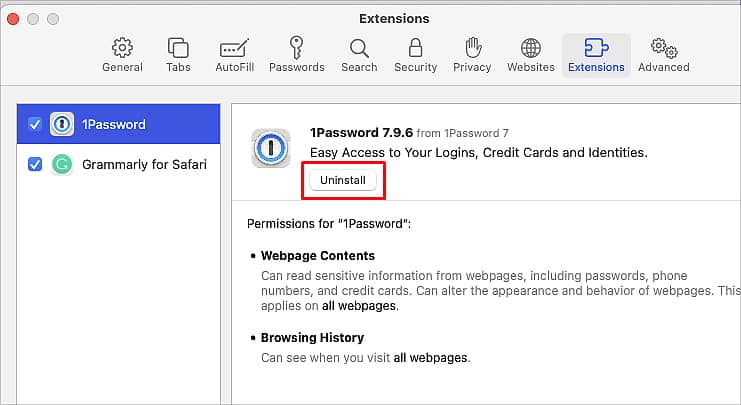
- Select the Show in Folder option on the confirmation box
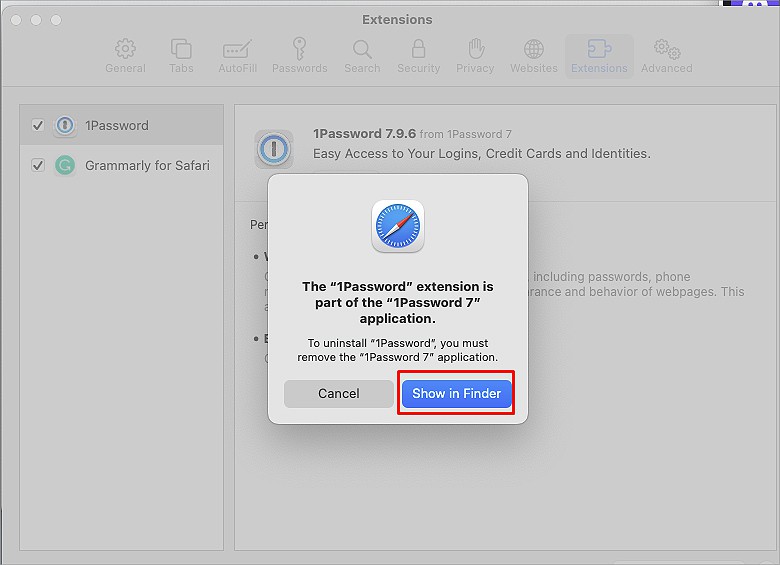
- You will be redirected to Application and Select and drag the extension on Trash.
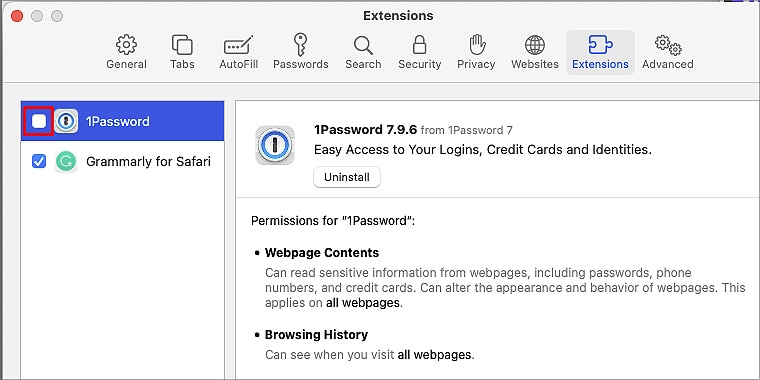
To Disable the Extensions,
- Click on the check box beside the extensions.
Log Out From All the Devices (On Browser/iPhone/Android)
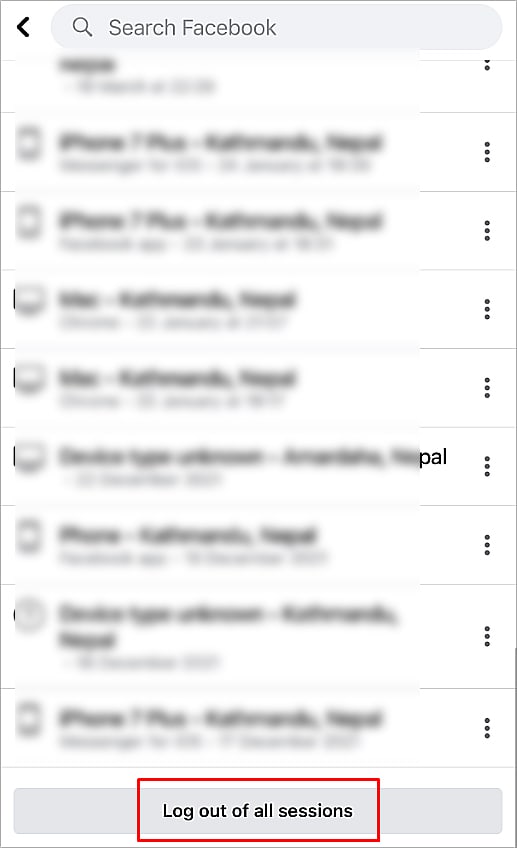
If you have logged in to your Facebook on multiple devices, there is a chance that someone else is also accessing your Facebook. This can also cause issues in logging in to your account.
To fix this, you must log out of your Facebook account from all the devices.
- Click on the profile icon at the top right (Android/Browser) or bottom right (iPhone) corner of your screen.
- Go to Setting and privacy
- Click on the Settings
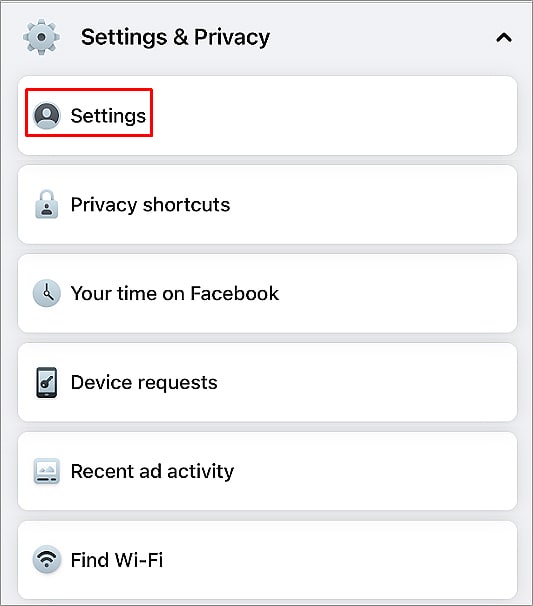
- Under the Security section, click on the Security and login option
- Click on the See all option beside Where you’re logged in
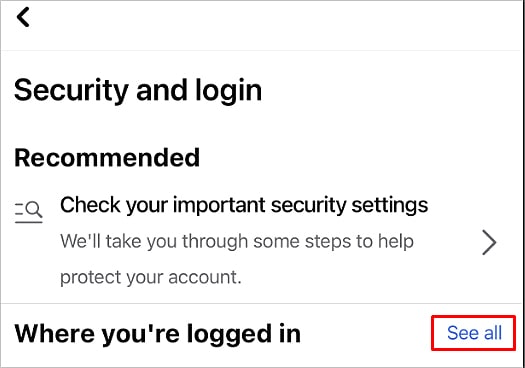
- Tap on the Log out of all sessions option.
Turn Off VPN
When you are using VPN, it can cause problems in accessing some apps like Facebook. If you are having logging issues, turning off the VPN can fix it.
Reinstall Facebook App
You can also delete and reinstall the Facebook app to fix the logging-out issue.
Delete Facebook
- Locate the Facebook app on your device screen
- Press on the app until you see a dialogue box appear.
- Tap on the Uninstall option
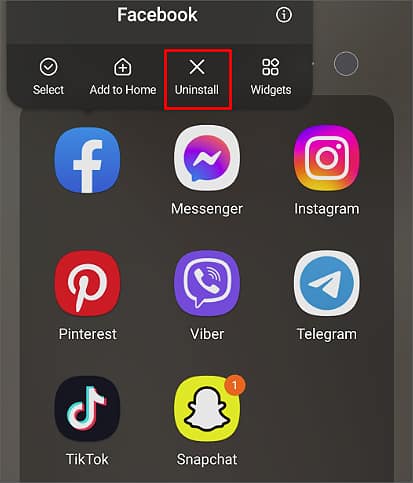
- Press OK option in the confirmation box.
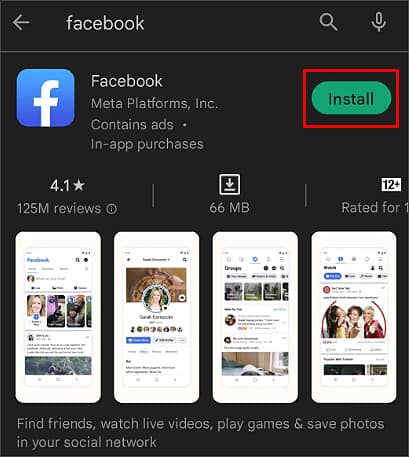
Reinstall Facebook
- Go to App Store (iPhone) or Play Store (Android).
- Search for the Facebook app and Tap on the Get (iPhone) or Install (Android) option.
Contact Facebook Help Center
If all else fails, this is the last resort you can try to resolve the logging out issue. You can report your issue on Facebook Help Center.



 Ivy Caldwell