 Brandon Fletcher
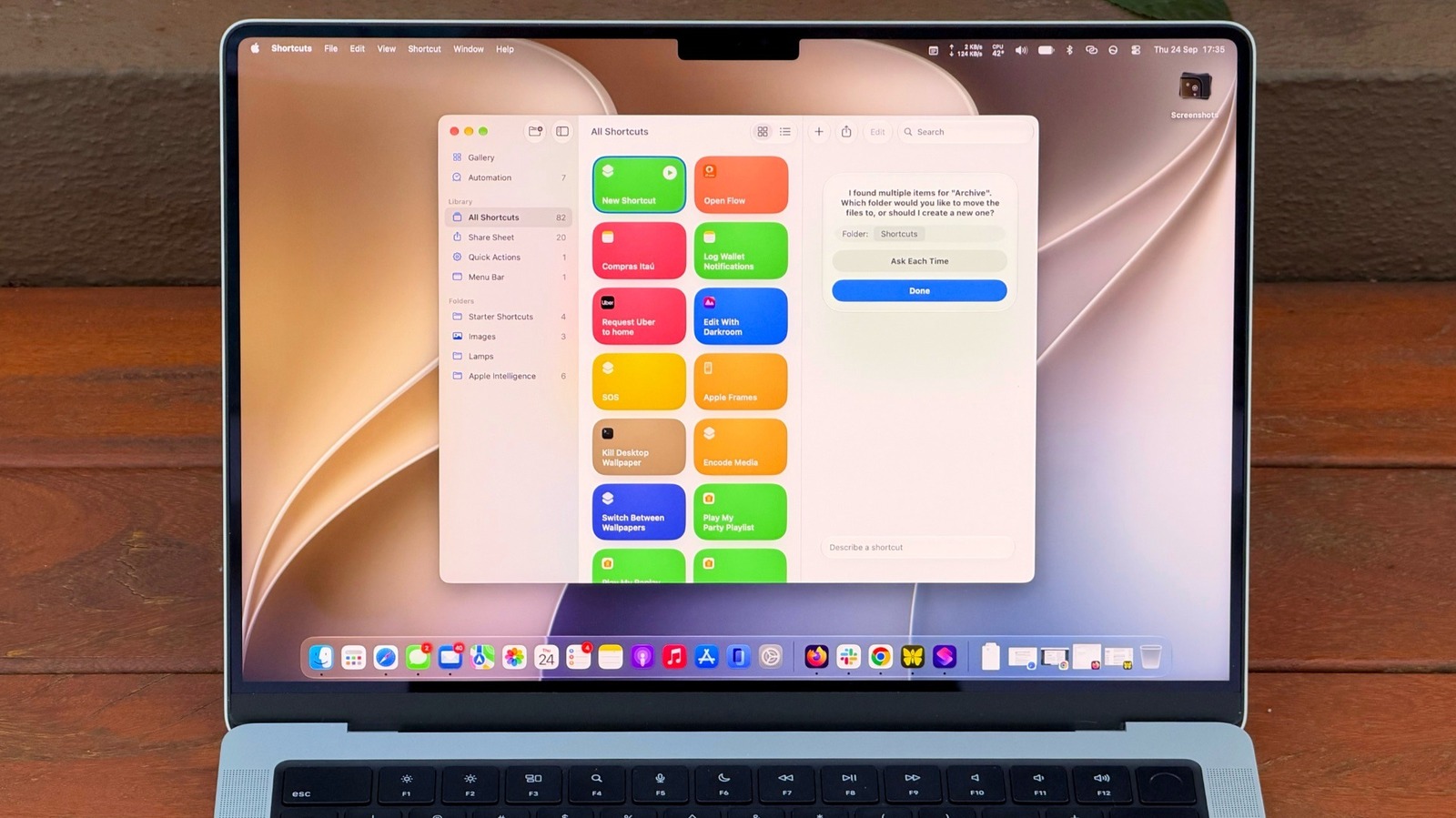

Effortlessly Automate Your Mac Using Shortcuts and Apple AI Technology.
Shortcuts has been a feature of macOS since the release of Monterey, yet many Mac users have yet to explore its full potential. Initially, it may appear daunting to navigate. Users must identify the appropriate actions and how to link them together, hoping everything functions correctly.
The introduction of Describe a Shortcut in macOS 27 Golden Gate simplifies this process. This feature allows you to type in what you need, enabling Shortcuts to perform the heavy lifting using AI. Although it may not be perfect every time, it significantly enhances the app’s usability, especially for those who are not tech-savvy.
For those unfamiliar, Shortcuts serves as an automation tool that enables users to create scripts for managing tasks across their devices. For instance, Apple illustrates a scenario where a shortcut sends a text to your spouse with an estimated arrival time based on traffic conditions when you leave work. The possibilities extend far beyond that, including a shortcut that checks your calendar and the weather to provide a daily summary of what to expect.
With macOS 27, mastering the Shortcuts app has become much more accessible, opening up a world of automation possibilities.
How to Easily Create Shortcuts on Your Mac
Filipe Espósito for Engadget
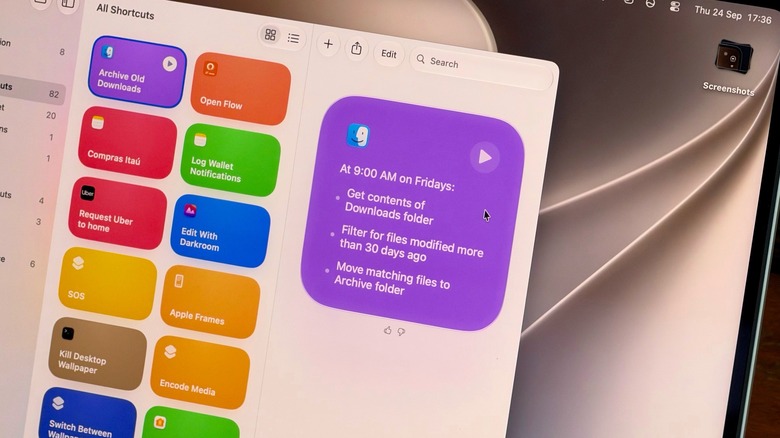
Creating a new shortcut only takes a few moments. Launch the Shortcuts app on your Mac and click the Plus button to begin. Providing detailed prompts increases the likelihood of the app accurately interpreting your request. For instance, a command like “Clean up my Downloads” might be too ambiguous. Instead, specify your request: “Every Friday, move files in my Downloads folder that are older than 30 days into a folder named Archive.” Clear instructions lead to more effective shortcuts.
This example illustrates how Shortcuts can assist with tasks that often slip through the cracks; few people regularly clean their Downloads folder unless they need to free up storage space. You can immediately verify the results by checking the folder to see what has been moved. If too many files were transferred, refine your prompt with additional details.
Shortcuts can also be utilized to summarize lengthy text using Apple AI technology. For example, say, “Take the text on my clipboard, summarize it in three sentences, and save it to a new note.” After copying a long article or email, run the shortcut, and you’ll receive a concise version in your Notes app.
Enhance Accessibility to Your Shortcuts
Filipe Espósito for Engadget
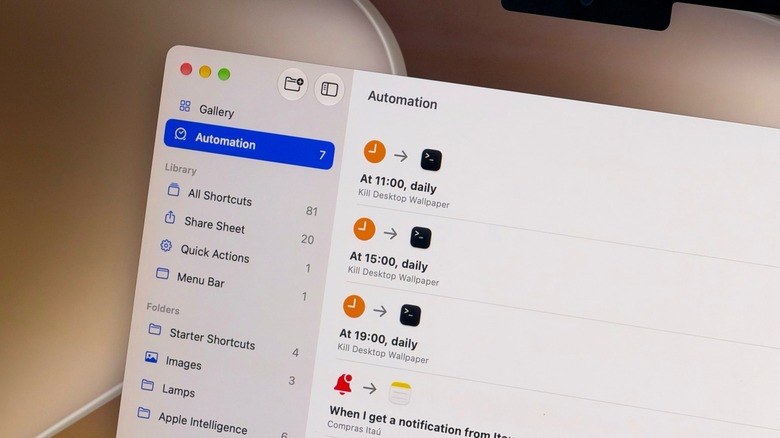
If a shortcut is not integrated into your daily routine, it is easy to forget about it over time. Fortunately, you can assign a keyboard shortcut to a specific action or pin it to the menu bar for easy access.
Select the shortcut you wish to modify and click Edit. Access the Shortcut Details menu (marked with the information icon) and choose Add Keyboard Shortcut. To pin it to the Control Center or menu bar, open Control Center on your Mac (located at the top-right) and select Edit Controls. Here, you simply need to add the desired action from the Shortcuts app, and you’re ready to go. exploring the Automation tab can help create a seamless workflow of shortcuts that operate automatically when needed.
Shortcuts is not the only feature in macOS 27 that acts on your behalf. Visual Intelligence comes with its own keyboard shortcut: Shift + Command + Space. After pressing this combination, select a window on your screen, and Siri can answer questions about it or take actions, such as adding an event to your calendar. For instance, try this on an email containing a date.
Both Shortcuts and Siri AI require Apple Intelligence, meaning you need a Mac equipped with an M1 chip or later; Intel Mac users may face limitations. using Apple’s AI models in Shortcuts may impose certain restrictions, especially when dealing with more complex prompts.


 Daniel Mercer