 Brandon Fletcher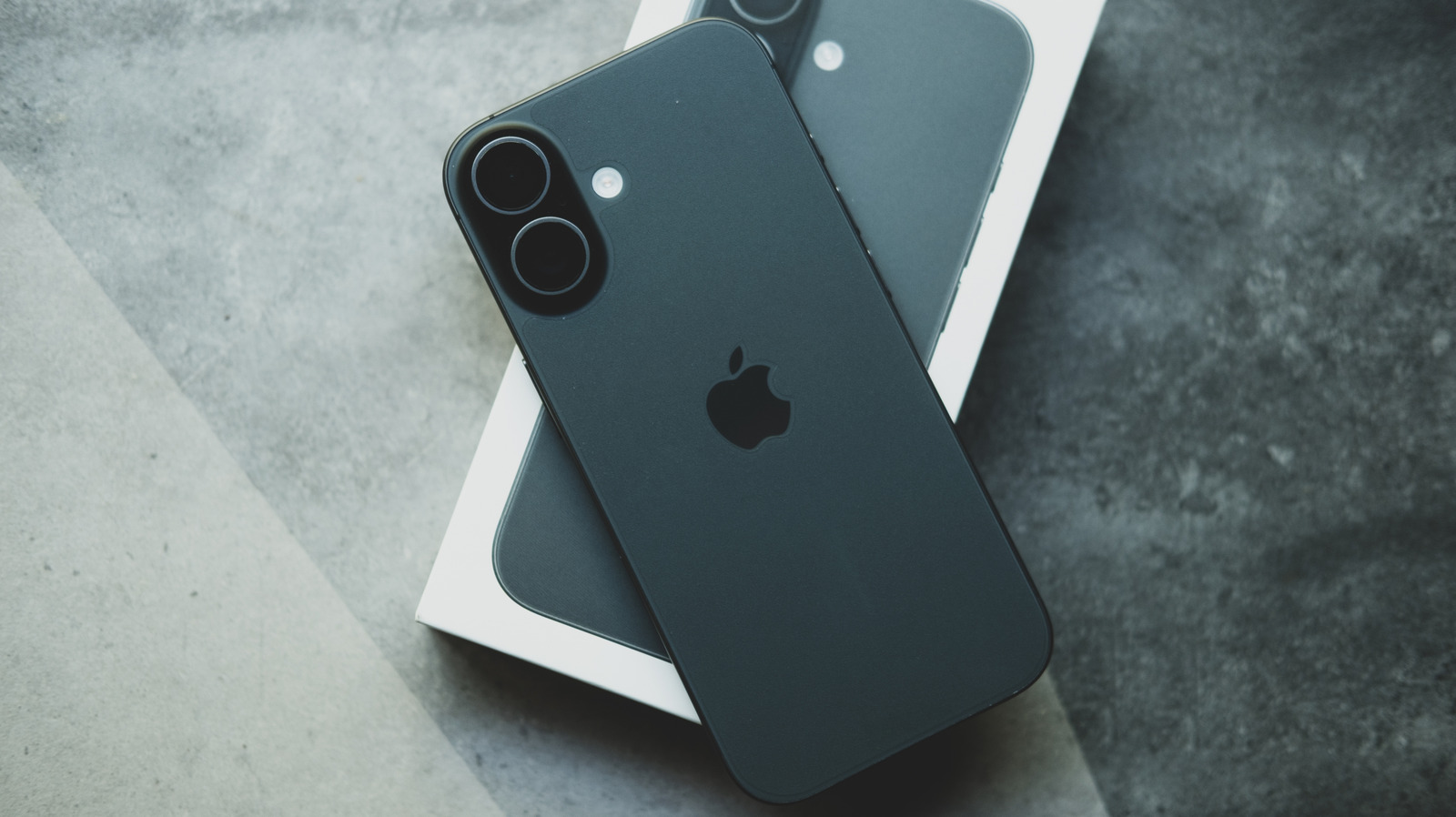

Restoring your iPhone camera settings to their original defaults is a straightforward process, as long as you are prepared to adjust several toggles.
Although your iPhone may not surpass a dedicated camera, there are numerous ways to enhance its photo and video quality. Even older iPhone models come equipped with features that can elevate your photography and videography skills. to truly gauge improvements, it’s often beneficial to revert to the default settings.
Every smartphone model offers various methods to enhance photography, and iPhones are no exception. There are countless guides available to help you select the best settings for your desired pictures and videos. if you’ve been tweaking your settings for a long time, or if you purchased a second-hand phone with altered configurations, it might be challenging to assess the impact of those changes. In such cases, resetting your camera settings to their defaults can be a smart move. While there isn’t a single button for this task, the process is still quite simple.
Understanding Default iPhone Camera Settings
Wongsakorn 2468/Shutterstock
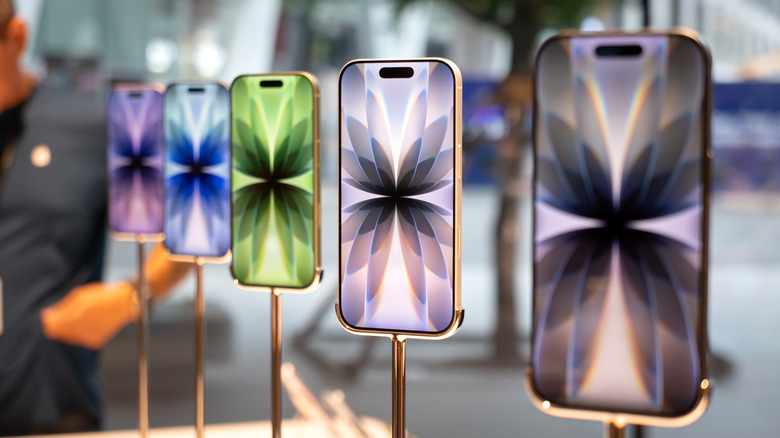
To start, navigate to Settings and then select Camera. Here, you will see all available options organized for your convenience. Due to the changes in iPhone models over recent years, this layout may vary between devices. A consistent feature, however, is the Preserve Settings option. Within this section, you’ll find several toggles. When turned off, these toggles will return their respective settings to default each time you open the camera app. Most of these toggles are initially set to off, with the exception of the Live Photo toggle, which means your camera typically reverts to its original settings after you exit the application.
There are further settings you can revert to their defaults. Your video recording frame rate should be set to 1080p at 30 fps (or 240 fps for Slo-mo) and should remain the same for Cinematic recording if your iPhone supports that feature. Other defaults include Stereo in Record Sound (or Spatial Audio on iPhone 16 and newer) and High Efficiency in the Formats section. The Grid and Level shooting options will be turned off, while Smart HDR and Prioritize Faster Shooting should be enabled.
Default Camera Settings for iOS 26 Devices
Studio4/Getty Images
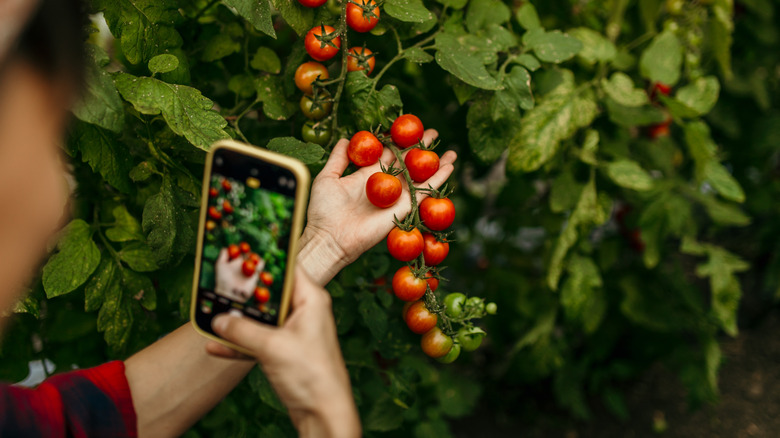
For iPhones that support iOS 26, there are additional settings with their own default configurations. For example, Lens Correction, Macro Control, and Scene Detection should all be activated by default. the default resolution in the Formats section should be set to 24 MP. ProRAW and Resolution Control settings will typically be disabled.
Keeping track of these settings can be challenging. For those who prefer a quicker method, navigate to Settings > Transfer or Reset iPhone, where you can access the Reset options. While there isn’t a specific option to reset just your camera settings, you can choose to reset all settings on your iPhone. This action will erase any Apple Pay cards, keys, and passes you have saved, restoring all settings to their defaults. Use this option only if you are confident and prepared to reconfigure anything you don’t want to reset.

 Daniel Mercer