 Daniel Mercer

Explore various techniques to keep your apps discreet.
Occasionally, you may prefer not to have all your installed apps visible on your iPhone or iPad Home screen. The easiest way to achieve this is by long-pressing an app icon, tapping the – (minus) icon beside it, and selecting Remove from Home Screen. This action moves the app to the App Library, but there are additional methods available.
You might want to streamline your iPhone’s interface, minimize distractions from social media, or maintain privacy regarding your installed applications. iOS and iPadOS offer multiple techniques to conceal apps, keeping them out of sight from you and others. While these methods aren’t secretive tactics, they are effective for reducing visual clutter and enhancing security for sensitive applications. If you prefer not to completely lock and hide an app, you can still remove it from your screen or limit its visibility across your device.
This guide primarily addresses iPhones and Face ID for simplicity, but similar steps apply to iPads and devices equipped with Touch ID.
How to Effectively Hide Apps on Your iPhone
Mr.Mikla/Shutterstock
Before iOS 18, the only way to hide apps was to place them inside folders, which was not very effective. Now, a more efficient method exists. To conceal an app, long-press the icon on your Home screen and select Require Face ID. This will trigger a prompt detailing what happens when the device locks. To access the app afterward, you’ll need to authenticate using Face ID or your passcode. notifications will not display any information, and the app’s content won’t appear in Spotlight searches or CarPlay.
This added security is particularly useful for sensitive applications, such as banking tools. There are numerous accounts of individuals being scammed by strangers who requested to use their phone for an “emergency.” Once they gain access to your device, transferring money through apps like Venmo can occur in mere seconds. Although it’s wise never to lend your phone to a stranger, requiring re-authentication for certain apps provides a safeguard against such situations.
By selecting Require Face ID, the app’s icon remains on your Home screen but requires authentication each time you open it. Alternatively, you can choose Hide and Require Face ID, which eliminates the app from your Home screen and from search results. After hiding an app, you will not receive any notifications from it. Keep in mind that this feature does not apply to most default applications; it only works for apps you have personally installed. the hidden status of apps does not sync across your Apple devices.
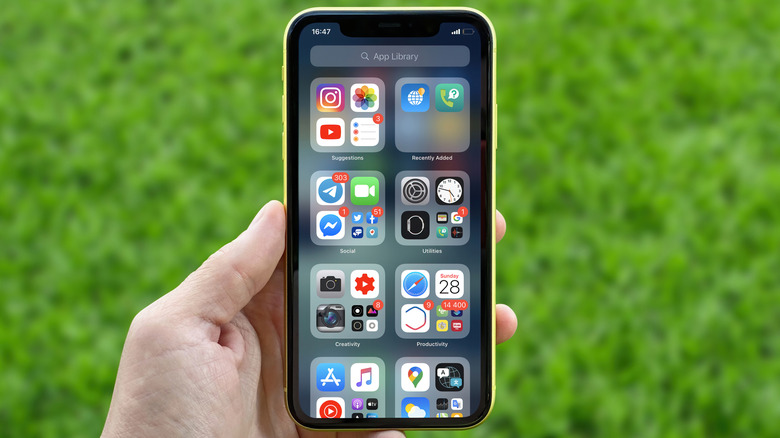
Hidden apps are stored in a specific folder named Hidden, located at the end of the App Library. To access it, swipe all the way to the right. This Hidden folder will appear empty regardless of how many apps are hidden. Accessing it requires authentication, and you will need to verify again to open each app. If you want to unhide an app later, long-press it in the Hidden folder, select Don’t Require Face ID, and it will reappear at the top of the list after verification. You can then search for it using Spotlight and drag it back to your preferred location.
Understanding the Limitations of Hidden Apps
Cheng Xin/Getty Images
While hiding apps significantly minimizes their visibility on your device, it does not eliminate all traces. Anyone who has access to your passcode can view the Hidden folder, as well as the corresponding list found under Settings > Apps > Hidden apps.
“hidden” apps can still appear in several areas: Settings > Screen Time > See All App & Website Activity and Settings > Battery > View All Battery Usage. In these sections, you can see usage duration and battery consumption for each app, regardless of their hidden status. If there is data to report, it will be displayed here.
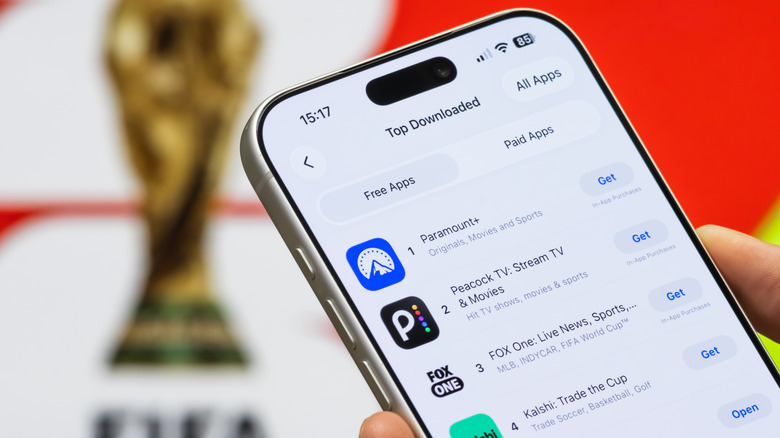
Apps you download will also appear in your App Store purchase history, including free apps. To hide these records, open the App Store, tap your profile icon in the upper right corner, and select Apps & Purchase History. If you’re part of a family sharing group, tap Your Apps. This will show everything you’ve downloaded, even those not currently on your device. Swipe left on any item and select Hide to remove it from the list. If you wish to restore it later, return to the top-level App Store menu, tap your name, and choose Hidden Purchases to Unhide any apps you want to reinstate.
This process serves more for organization rather than true privacy. You don’t need to authenticate to access the Hidden Purchases list, and your transaction history remains available under Purchase History in the Apps & Purchase History menu. Hiding purchases prevents family members from re-downloading them but does not conceal the apps themselves.
Additional Strategies for Managing App Visibility
Tada Images/Shutterstock
Hiding apps is just one method to control what appears on your device. This technique can help limit your exposure to distracting applications by adding extra steps for access and concealing notifications. there are further restrictions you can apply to enhance this control.
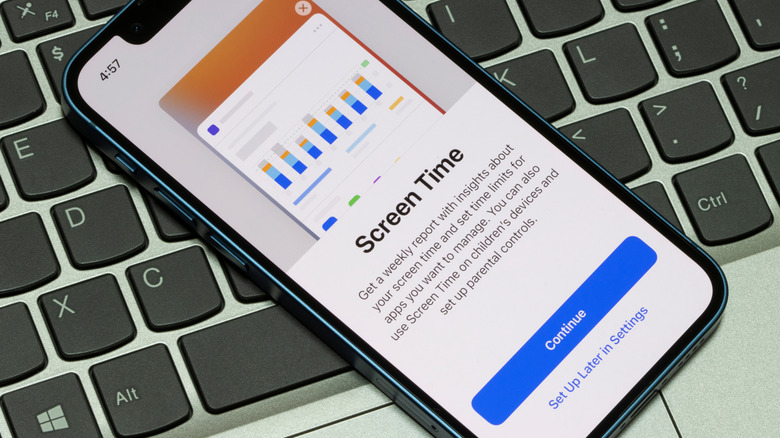
Navigate to Settings > Screen Time to establish daily time limits for specific apps using App Limits or set designated hours during which you cannot access them via Downtime. Within this menu, under Content & Privacy Restrictions > Allowed Apps & Features, you can disable access to certain built-in applications (like FaceTime and Mail), removing them from your Home screen. While these options are beneficial for managing a child’s iPad usage, they can be utilized by anyone seeking more control.
If an app becomes too intrusive, head to Settings > Notifications, select the app, and adjust its notification settings to reduce interruptions. To prevent your iPhone from suggesting an app, go to Settings > Apple Intelligence & Siri > Apps, choose the app, and disable the suggestion sliders. To eliminate an app from search results, visit Settings > Search, select the app, and turn off both suggestion sliders. While hiding an app accomplishes all these actions, you can choose to implement them without hiding the app if you wish to keep it accessible.
While hiding apps is not a foolproof solution, it does introduce additional steps for anyone trying to access something you prefer to keep private. Whether you want to prevent others from rummaging through your phone or bolster protection against potential misuse, consider enabling Stolen Device Protection on your iPhone for added security.