 Daniel Mercer

Transform Your Morning Commute: Let Your Car Greet You with the Shortcuts App
Enhancing your Apple CarPlay experience with a personalized intro is a simple yet effective way to add flair to your daily drive. Imagine starting your day with Siri cheerfully greeting you, accompanied by a nostalgic Back to the Future theme song playing through your car’s speakers. You could even have Siri remind you to grab your coffee mug from the car roof and not to forget your wallet. While this feature may not be groundbreaking, it certainly adds a touch of fun to your commute.
To initiate this feature, set up a CarPlay automation that triggers as soon as your iPhone connects to your vehicle. Keep in mind that this won’t replace your car’s built-in startup sounds, infotainment system welcomes, or the often-annoying seat belt reminder. Instead, it serves as a personalized action that plays through your car’s audio system. The performance may vary based on whether you use a wired or wireless connection to your vehicle and how quickly your iPhone establishes that connection.
For optimal results, choose a custom startup sound that is brief and to the point. A clip lasting between two to five seconds is ideal—it conveys your message without interfering with navigation prompts or other essential audio cues. To set this up, all you’ll need is your iPhone, the Shortcuts app, and an audio file saved in your Files app.
How to Configure Your CarPlay Automation
Start by downloading the audio file for the sound or clip you wish to use. Create a designated folder in the Files app on your iPhone (not in iCloud Drive) with an easily recognizable name for quick access from the Shortcuts app. Save your audio file to this folder.
-
Launch the Shortcuts app.
-
Select the “Automation” icon located at the bottom center of the screen.
-
If you haven’t set up any automations previously, choose “New Automation” or tap the + icon at the top right corner of the screen.
-
Select “CarPlay” from the list (it’s usually in the middle, but you can also use the search box).
-
Tap “Is Connected” if it isn’t already selected, then choose “Run Immediately,” and tap “Next.”
-
Select “Create New Shortcut.”
-
Scroll down and select “Files.”
-
Among the various options, choose the tab labeled “File.”
-
A faded blue File button should appear next to the file symbol at the top. Tap that File button.
-
Browse your folders until you locate the one you created and open it.
-
Select the sound effect you want to use from within that folder.
-
Tap the blue checkmark at the top right to complete the process.
Be aware that these steps may vary slightly depending on your iPhone model and iOS version. The Shortcuts feature is compatible with devices dating back to the iPhone 5s, so older models may present the Shortcuts options in a different arrangement or with slightly different terminology.
Now it’s time to test your setup in your car. Connect to CarPlay and listen for your audio clip. If the volume seems off, adjust it on your iPhone as needed. Your iPhone may use the original volume levels from the audio file when the action plays.
Modify, Remove, and Enhance Your Automation
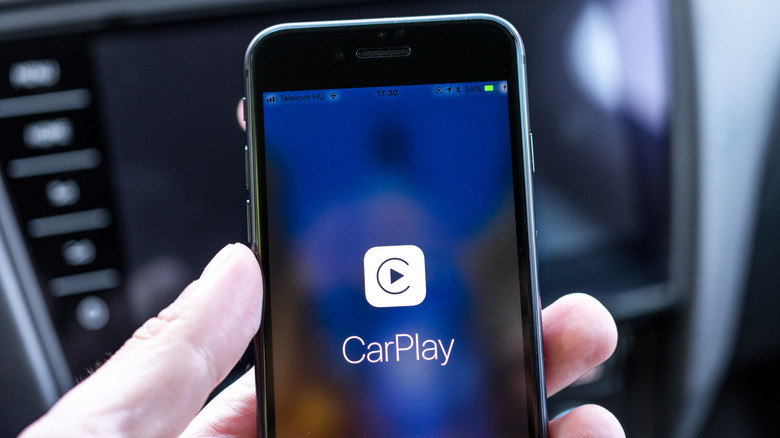
Bence Bezeredy/Getty Images
To modify your CarPlay automation, simply return to the Shortcuts app, tap on Automation, and select the automation you previously created. You can then tap on the chosen file to replace it with a different greeting, rearrange actions, or even delete an action entirely. If you tire of a specific sound, there’s no need to delete it. Instead, return to the automation, select it, and change “Run Immediately” to “Don’t Run.” This allows you to rotate in new sounds or take a break from the current one.
Shortcuts and CarPlay also offer more than just sound options. You can include additional actions that follow your greeting. For instance, after your initial greeting, you might want to open your preferred navigation app, start a playlist for your commute, or display reminders for your morning tasks. you can create automation for disconnection events, such as pausing media or launching walking directions when you exit the vehicle. In essence, your CarPlay system can be customized to suit your preferences, whether you favor a straightforward driving interface or a suite of automations that enhance your driving experience.