 Ethan Carter
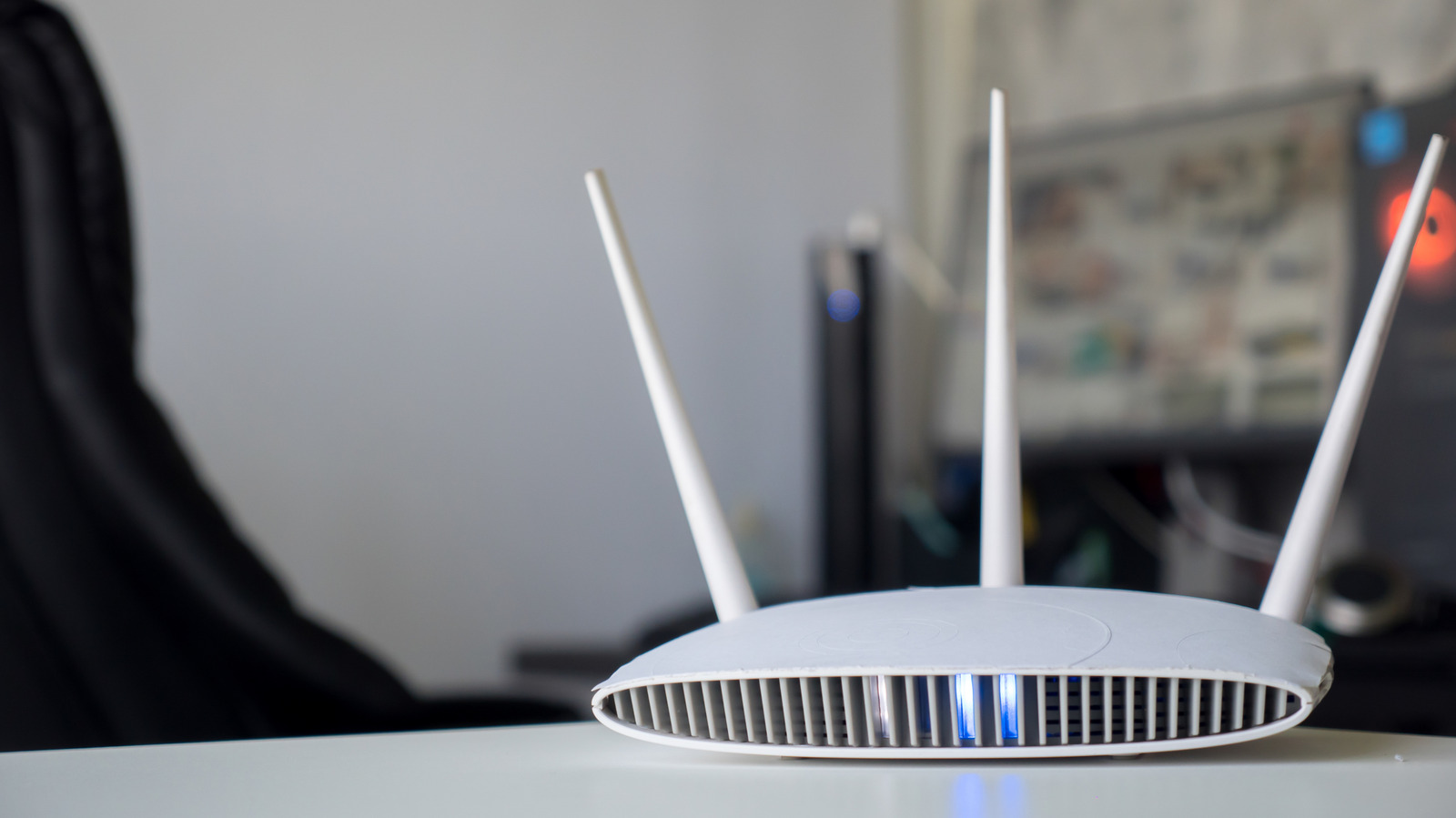

The color of the flashing lights on your Netgear router can indicate various statuses, often signaling positive conditions.
The front panel of a Netgear router features a range of lights and symbols, each representing different statuses. While some indicators like the power light are straightforward, others can be ambiguous. The lights may exhibit various colors and blinking patterns, making it challenging to understand their meanings without referring to the manual.
Grasping the significance of each light on your Netgear router is crucial for effective troubleshooting and ensuring optimal performance. While certain indicators carry more weight than others, each serves a specific function. Whether you own a traditional router or one of Netgear’s advanced mesh Wi-Fi systems, here’s how to interpret the signals your device is conveying.
Key Indicators on Your Netgear Router
Focus on these essential lights on your router, as they provide critical insights into important metrics such as power status and internet connectivity.
Power Indicator LED
Displayed with the familiar power symbol, this light conveys details about your router’s power and firmware status. If your router is powered down, this light will be off.
- Solid green or white: The router is operational and ready for use.
- Solid amber: The router is in the process of powering on.
- Blinking amber: Indicates that the firmware is being updated, or the reset button has been pressed.
- Blinking white: The firmware has encountered a corruption issue.
- Blinking white and amber: The router is functioning in access point mode, providing connectivity for other devices but disabling certain features like VPN and remote management.
If you experience issues with your router, start by restarting it. If it remains unresponsive, consider performing a factory reset.
Internet Connection LED
This light, symbolized by a small circle surrounding a larger one, indicates your internet connection status:
- Off: The router is disconnected from a modem; verify that the Ethernet cable is securely connected and undamaged.
- Solid green or white: Indicates that the internet connection is established.
- Solid amber: An Ethernet cable connection to the modem has been detected.
- Blinking white: Data is being sent and/or received through the port.
Wi-Fi Indicator LED
Symbolized by a small dot flanked by two curves, this light reflects overall Wi-Fi activity.
- Off: The router’s Wi-Fi functionality is disabled.
- Solid white: The Wi-Fi radios are active and operational.
- Blinking white: Data is being transmitted and/or received via Wi-Fi.
Additional Indicators on Your Netgear Router
ParinPix/Shutterstock
Other lights on your Netgear router offer valuable insights for specific troubleshooting scenarios or when connecting additional devices.
Wi-Fi Band Indicators
Modern routers typically feature indicators for both the 2.4GHz and 5GHz bands. If you have a Wi-Fi 6E model or newer, you will also see a 6GHz indicator for that advanced band. The indicator lights will vary based on the bands currently in use, but their meanings remain consistent across each band.
- Off: The specified Wi-Fi radio is turned off.
- Solid white: The Wi-Fi radio is active and functioning.
- Blinking white: Data is being transmitted and/or received over that specific Wi-Fi radio.
USB Port Indicators
Each USB port on your router is accompanied by an indicator light, represented by the USB trident symbol or labeled as “USB 3.0.”
- Off: No USB device is connected, or the Safely Remove Hardware option was selected, allowing for safe removal of the device.
- Blinking: A USB device is attempting to establish a connection.
- Solid green or white: A USB device is successfully connected and ready for use.
Ethernet Port Indicators
These indicators are numbered according to the respective Ethernet ports on the router. The color of the light indicates the connection speed: white or green for 1 Gbps connections, and amber for slower 100 Mbps or 10 Mbps Ethernet links.
- Off: No device is connected to the port.
- Solid: A powered device is connected to the port.
- Blinking: Data is being sent and/or received through the port.
WPS Indicator
This light, represented by an icon that resembles a router with signal waves, indicates the success status of a WPS (Wi-Fi Protected Setup) connection. This feature allows you to add devices to your network without entering the network credentials. For enhanced security, it is advisable to disable this feature.
- Off: No WPS connection is established.
- Blinking: A WPS connection is currently being initiated.
- Solid: The WPS connection has been successfully established.
Understanding the Light Indicators on a Netgear Orbi Mesh System
The light indicators on Netgear’s Orbi Wi-Fi mesh system are more streamlined than those found on traditional routers, offering a simplified representation of key statuses. There is one light located at the front and another at the back of the device. The front light indicates connection status, while the back light pertains to power and firmware status.
Front LED Indicators
- Solid blue light: Indicates a strong connection between the router and satellite.
- Solid amber light: A fair connection exists between the router and satellite, although it is not optimal.
- Solid magenta light: No backhaul connection or internet access is available.
- No light: The Orbi is without power.
Back LED Indicators
- Solid green light: Both the router and satellite are powered on.
- Solid amber light: The device is in the process of rebooting.
- Pulsing amber light: The device is updating its firmware or resetting to factory settings.
- Pulsing red light: Indicates potential hardware problems or connectivity issues.
- No light: The Orbi is not receiving power.

 Daniel Mercer

 David Bridges