 Brandon Fletcher

Enhance your messaging experience and eliminate those overused reactions everyone is tired of seeing
Emojis and GIFs serve as fun ways to express emotions and reactions, but their selection is often limited and slow to update. While GIFs provide more variety, finding the perfect one can still be a challenge. For a more personalized touch, consider using stickers on your iPhone. These allow you to express yourself in a way that resonates with you and your friends.
Stickers offer a delightful and unique way to communicate within the Messages app and beyond. If you haven’t yet explored the world of custom stickers, you’re missing out on a creative outlet. Any photo or video can transform into a humorous reaction image, and the process is straightforward—no advanced photo editing skills required.
Create stickers easily from your own photos, including animated options from Live Photos. A well-timed sticker can add humor to group chats, spark inside jokes, or help you craft new memes with friends. Once you create a sticker, it stays in your library for quick access. Managing your sticker collection is also simple; you can easily remove any stickers you no longer want. As you start using stickers, your friends will likely follow suit, leading to more entertaining conversations for everyone.
How to Create Custom Stickers on Your iPhone
Wachiwit/Getty Images
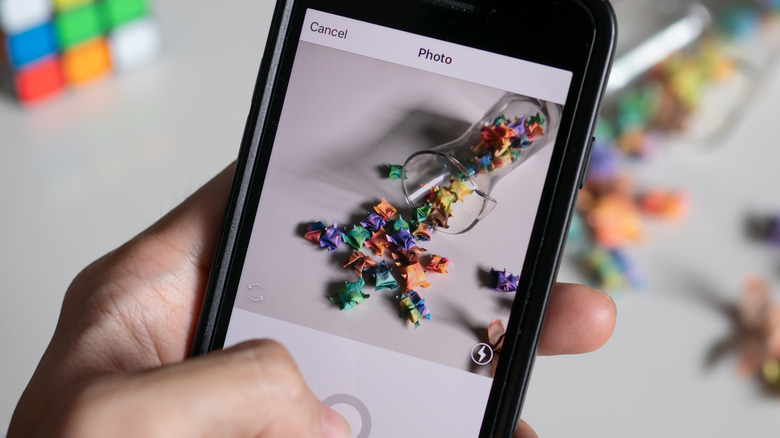
When creating a new sticker, you have two primary options: using the Photos app or the Messages app. To start with the Photos app, locate a picture that you want to transform into a sticker. The best images for this purpose are those with a clear subject, like a person, pet, or object.
Tap to view the chosen picture, then press and hold on the element you wish to convert into a sticker. The selected area will briefly shine, and a tooltip menu will appear. If this doesn’t occur, try selecting a different element that stands out more against the background. Choose Add Sticker to save it to your library. You can create as many stickers as you like, sometimes even multiple stickers from the same image. If you use a Live Photo, the sticker will be animated (you can toggle off the Live option if you want it to be static).
Alternatively, you can create stickers directly within the Messages app. Open a conversation, tap the + (Plus) icon to the left of the text input area, and select Stickers. Tap the + (Plus) icon in your sticker list to access your photo library. Here, elements that can be turned into stickers are highlighted automatically—no need to press on them first. Simply tap one and then hit + (Plus) at the bottom to add it to your library.
How to Send and Organize Your Stickers on iPhone
DenPhotos/Shutterstock
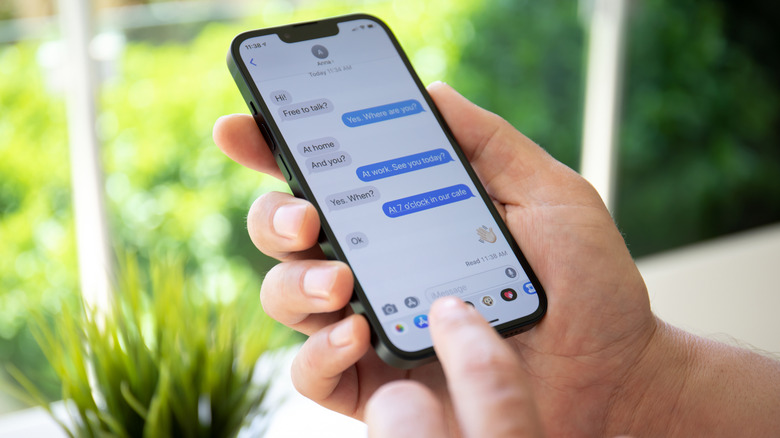
The Messages app is the ideal platform for utilizing your stickers. Access the + (Plus) menu to view all the stickers you’ve created. To organize your collection, press and hold a sticker, then select Rearrange from the tooltip. This action activates “jiggle mode,” similar to customizing your iPhone’s Home screen, allowing you to rearrange or delete stickers using the – (Minus) button for bulk removal. You can also select Add Effect from the tooltip menu to enhance your stickers with options like Outline and Shiny, some of which react as you tilt your iPhone, mimicking a holographic effect.
To send a sticker, simply tap it from your library, which adds it to your message draft like an attached photo. For added fun, press and hold a sticker to “peel” it, then drag it into the conversation to “stick” it. Use this feature creatively to overlay stickers onto texts and images, such as having your pet photobomb scenic shots or using your friend’s silly face as a reaction.
Remember that stickers are primarily designed for use in iMessage conversations (those with blue bubbles). While they can be sent in RCS chats with Android users, the “peel and stick” functionality may not work properly. Stickers sent via SMS may also appear blurry due to strict size limitations.
Explore Additional Uses for iPhone Stickers
Hadrian/Shutterstock
Your stickers aren’t limited to the Messages app; they can also be used in various other messaging platforms like WhatsApp. To access your stickers in WhatsApp, tap the Emoji button at the bottom-left of your keyboard and select the Stickers tab. keep in mind that you can’t “stick” them onto messages as you would in iMessage. Stickers are also usable in any iPhone app that supports Markup mode. For instance, you can open an image in the Photos app, tap the Edit icon at the bottom, and select the Markup icon at the top.
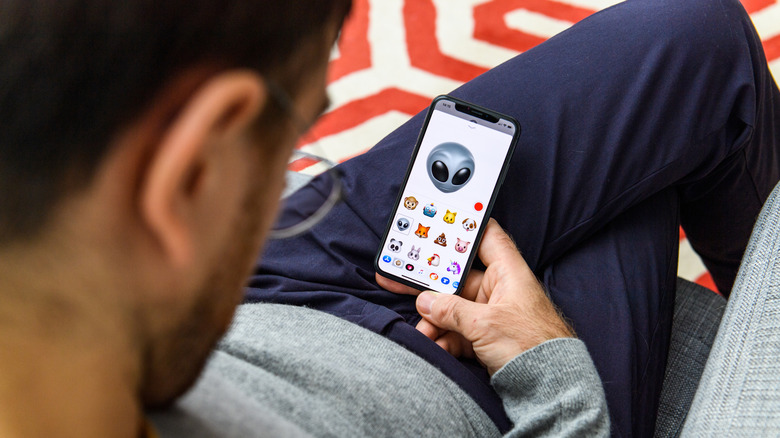
In Markup mode, tap + (Plus) on the bottom toolbar and choose Add Sticker. You can move, resize, and duplicate stickers as needed. Don’t forget to save the edited image once you finish. Other apps that support Markup include Mail and Notes. If you’re looking for inspiration, many iPhone apps offer their own sticker packs. In the Stickers menu, you can find icons for emoji (which can also serve as stickers), custom Genmoji, Memoji, and stickers from compatible installed apps. For example, apps like American Airlines, Wikipedia, and Taco Bell provide their own sticker offerings. You can tap Edit at the far right to rearrange your sticker packs or explore Get Sticker Apps on the App Store at the bottom for more options.
Your custom stickers sync across all devices linked to your Apple account, so don’t hesitate to use them on your iPad and Mac as well! They add a personal touch to your messages. Experiment with creating a variety of stickers to find the best ways to express yourself.

 David Bridges
 Daniel Mercer