 Daniel Mercer

Resetting your Google speakers and displays takes just seconds.
The Google Home Mini has been on the market for nearly nine years, and while it has been discontinued, many of these devices remain fully functional. there are circumstances that necessitate a factory reset. If your speaker becomes unresponsive, you encounter Wi-Fi connectivity issues, you want to change the linked Google account, or you’re preparing to pass it on to someone else, knowing how to reset it is essential.
Fortunately, resetting your device requires no technical skills or specialized tools. Regardless of the Google speaker or display model you possess, the reset process takes only a few minutes, including the original Home Mini. This efficiency is particularly beneficial, as setting up the device again will require additional time, and we all have busy schedules.
In this guide, we will detail the complete process for resetting the original Google Home Mini, explore how to reset other Google devices, and explain the steps to take after completing the reset.
Step-by-Step Guide to Factory Resetting Your Google Home Mini
Nathan Ingraham for Engadget
Earlier this year, Google launched a new smart home speaker, marking the end of the Nest Home Mini and the Nest Audio models. The company has confirmed to Engadget that it will no longer produce new units of these models but will continue to provide software updates, security patches, and customer support.
It is important to note that you cannot initiate a factory reset on these devices using voice commands or the Google Home app. Instead, you must use the physical buttons on the speaker.
For the Google Home Mini (1st generation), turn the device over and find the reset button located on the bottom. Just beneath the power cord, you will see a small circle etched into the base. Press and hold this button for about five seconds until the reset process begins, and continue holding it for another 10 seconds until you hear a confirmation chime.
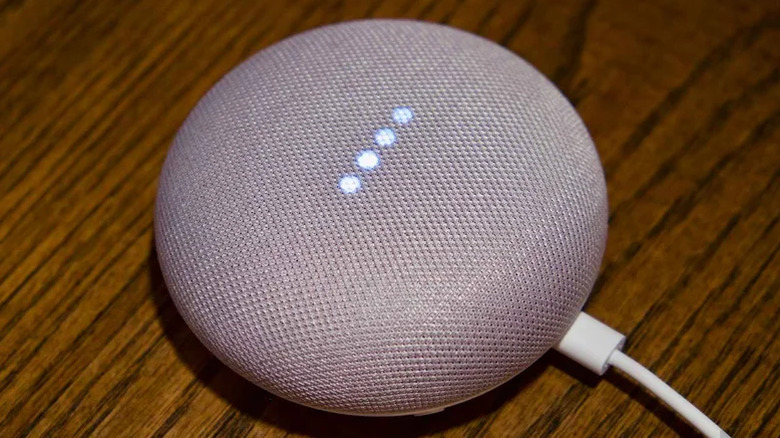
If you own the Google Nest Mini (2nd generation), which visually resembles the original, locate the microphone on/off switch on the side and turn it off. This action will cause the LED lights to pulse orange. Next, press and hold the center of the device, where the top lights are located, for around five seconds to initiate the reset. Keep holding it for another 10 seconds until you hear a chime confirming the reset is complete.
For display models like the Nest Hub, you need to press and hold both volume buttons on the back of the device simultaneously for about 10 seconds. The screen will indicate that the reset is in progress. Wait a few moments for it to fully restart before attempting to set it up again.
What to Expect After a Factory Reset and How to Reconfigure Your Device
Performing a factory reset completely erases your Google Home Mini, restoring it to the condition it was in when you first unboxed it. All personal data, Wi-Fi credentials, and linked Google accounts are permanently deleted, and the device will be disconnected from all household members. This action cannot be undone, so ensure you do not simply need a reboot, which can be done by unplugging the device for a minute to resolve minor issues without erasing any data.
To relink your device, open the Google Home app, tap the “+” icon, and select Set up device. Follow the prompts within the app to reconnect to your Wi-Fi network and link the speaker to your Google account. If your Google Home Mini fails to connect, numerous troubleshooting tips are available on Google’s support pages.


 Brandon Fletcher