 Brandon Fletcher

Key points for restoring an external drive
- Check connections: Test another USB or Thunderbolt port and a compatible cable before troubleshooting software.
- Windows tools: Use Device Manager, Disk Management and CHKDSK to check whether Windows detects or can repair the drive.
- Mac repair: Use Disk Utility to mount the drive or run First Aid before considering a reformat.
- Protect your files: Reformatting erases data, so try repair options first and seek recovery help if the files matter.
A portable external drive makes it easier to move files between computers and keep backup copies. This guide explains how to troubleshoot an external hard drive or SSD that a PC or Mac will not read, starting with cables and ports and then checking built-in repair tools.
Choosing a portable SSD can make it easier to carry a media library or documents between machines. An external drive can also support a 3-2-1 backup strategy: keep three copies of your data on two types of media, with one copy stored in a safe location at home or away from the workplace.
Like any local storage device, an external hard drive or SSD can stop working or fail to start. A drive that is not recognized may still be recoverable, so check the connections and try non-destructive software fixes before considering a reformat.
Hardware checks are usually straightforward, while software troubleshooting may involve tools you use less often. If a software fix works, it may let you restore access without buying replacement hardware; the steps below cover options for both Windows and macOS.
How can you troubleshoot an external hard drive that is not detected?
Dmytro Varavin/Getty Images
Start by checking whether the problem comes from the USB or Thunderbolt port, the cable or the computer’s power supply rather than the drive itself. A drive may appear in Windows or macOS but still fail to mount if it has a formatting or software issue.
Connection checks can identify common hardware problems before you change drive settings. Try these steps:
- Connect the drive to a different USB or Thunderbolt port.
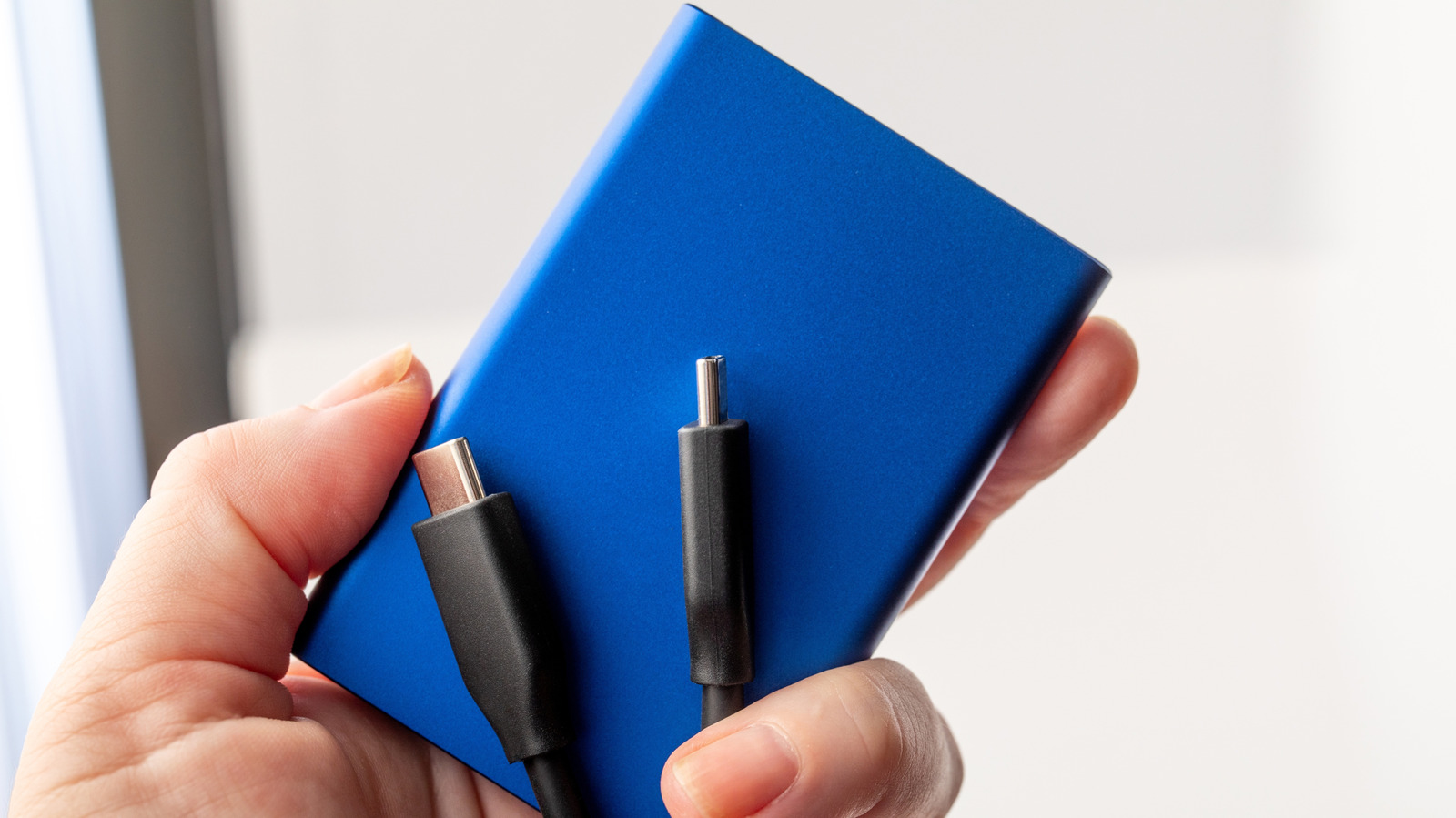
- Try another compatible USB or Thunderbolt cable; use the correct cable and port for the device.
- Check that the drive has power, including connecting its AC adapter if it has one; some computer ports may not supply enough power.
- Connect the drive to a second computer if one is available.
Thunderbolt cables can carry charging, data and video signals. Testing another computer and compatible cable helps distinguish a connection issue from a problem with the drive.
In Windows 11, search for Device Manager from the taskbar and expand Disk drives. If the drive appears, right-click it and select Properties > Volumes > Populate to check its volume information.
Next, open Disk Management and find the disk number shown earlier. If the disk has no drive letter, assigning one may restore access. If the drive lacks NTFS formatting, reformatting may be necessary for Windows compatibility, but reformatting erases existing data.
Before reformatting, try the CHKDSK utility, which attempts to fix errors and recover bad sectors. Open Terminal from taskbar search and enter chkdsk [drive letter] /r.
On a Mac, open Disk Utility and select View > Show All Devices. If the drive appears, select its indented entry and click Mount; if mounting fails, try First Aid to attempt repairs without erasing data.
Disk Utility can also reformat a drive, but that process wipes its contents. Try mounting and First Aid before choosing a reformat, especially when the drive contains files you have not backed up.
What other steps can help restore access to an external SSD?
Daniel Chetroni/Shutterstock
Driver updates and operating-system updates can help when connection checks and disk repair tools do not restore access. On macOS, Apple typically includes hardware drivers with operating-system updates; open Apple menu > System Settings > General > Software Update to check.
In Windows 11, open Settings > Windows Update and install available updates. If the issue remains, return to the drive’s Properties menu in Device Manager, select the Driver tab and try updating or uninstalling the driver.
If you uninstall a driver without choosing the option to delete it, restarting the computer should automatically reinstall the appropriate software. A restart may also resolve an issue, but if the drive remains inaccessible, contact the drive manufacturer or a repair shop.
When important files remain trapped on the drive, a data recovery firm may be able to help. General Mac or PC recovery tools are another option, although they may not solve problems that the earlier troubleshooting steps could not fix.
What should you try before reformatting an external drive?
Check the cable, port and power first, then try the relevant repair tools: CHKDSK on Windows or First Aid in Disk Utility on Mac. Reformatting erases the drive’s existing data.
Reformatting removes existing data from an external drive.
Why does a computer detect a drive but not open it?
A computer may detect a drive that fails to load because of a formatting or volume issue. On Windows, check Disk Management for a missing drive letter; on Mac, try mounting the drive in Disk Utility.
A detected drive may still need a drive letter or mounting before its files are accessible.
Can a different cable fix an external SSD?
Yes, testing a compatible cable and another port can help identify a connection problem. Also check that the drive has enough power and connect its AC adapter if required.
A faulty cable, port or power connection can prevent a computer from reading an external SSD.


 Daniel Mercer

 Ethan Carter